> ## Documentation Index
> Fetch the complete documentation index at: https://docs.oculusproxies.com/llms.txt
> Use this file to discover all available pages before exploring further.
# How to Set Up Oculus Proxies With Antik
> Enhance your online privacy and streamline browser-based workflows by integrating Oculus Proxies with Antik. Follow this step-by-step guide to configure your proxies for secure and efficient browsing.
 ## What is Antik?
**Antik** is a powerful browser automation tool designed for managing multiple online accounts, web scraping, and automating targeted tasks. When combined with **Oculus Proxies**, it ensures a secure, anonymous browsing experience, preventing blocks and maintaining smooth automation.
If you're using **Oculus** to access search engines like **Google, Bing, or Yandex** and experiencing connection issues, the proxy type may be the cause. **ISP Premium Proxies** provide stable, unrestricted access and help prevent blocks that standard proxies might encounter. Switching to **ISP Premium Proxies** can improve performance.
## How to Integrate Oculus Proxies With Antik
1\. Visit the official [Antik website](https://antik-browser.com/).
2\. Download and install the Antik application.
3\. Open the app and log in with your credentials to access the dashboard.
In the **Profiles** tab on the dashboard, click **Create** to start a new browser profile.
## What is Antik?
**Antik** is a powerful browser automation tool designed for managing multiple online accounts, web scraping, and automating targeted tasks. When combined with **Oculus Proxies**, it ensures a secure, anonymous browsing experience, preventing blocks and maintaining smooth automation.
If you're using **Oculus** to access search engines like **Google, Bing, or Yandex** and experiencing connection issues, the proxy type may be the cause. **ISP Premium Proxies** provide stable, unrestricted access and help prevent blocks that standard proxies might encounter. Switching to **ISP Premium Proxies** can improve performance.
## How to Integrate Oculus Proxies With Antik
1\. Visit the official [Antik website](https://antik-browser.com/).
2\. Download and install the Antik application.
3\. Open the app and log in with your credentials to access the dashboard.
In the **Profiles** tab on the dashboard, click **Create** to start a new browser profile.
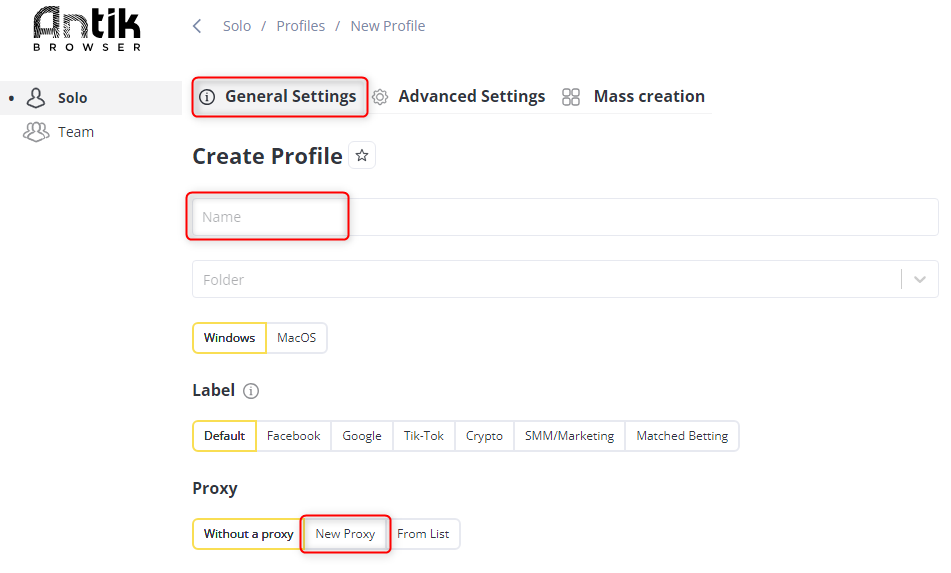
 1\. In the **General Settings** section, assign a unique name to your browser profile in the **Name** field for easy identification.
2\. Navigate to the **New Proxy** tab to configure your proxy.
1\. In the **General Settings** section, assign a unique name to your browser profile in the **Name** field for easy identification.
2\. Navigate to the **New Proxy** tab to configure your proxy.
 1\. Log in to your [Oculus Dashboard](https://oculusproxies.com/dashboard) to retrieve your proxy details.
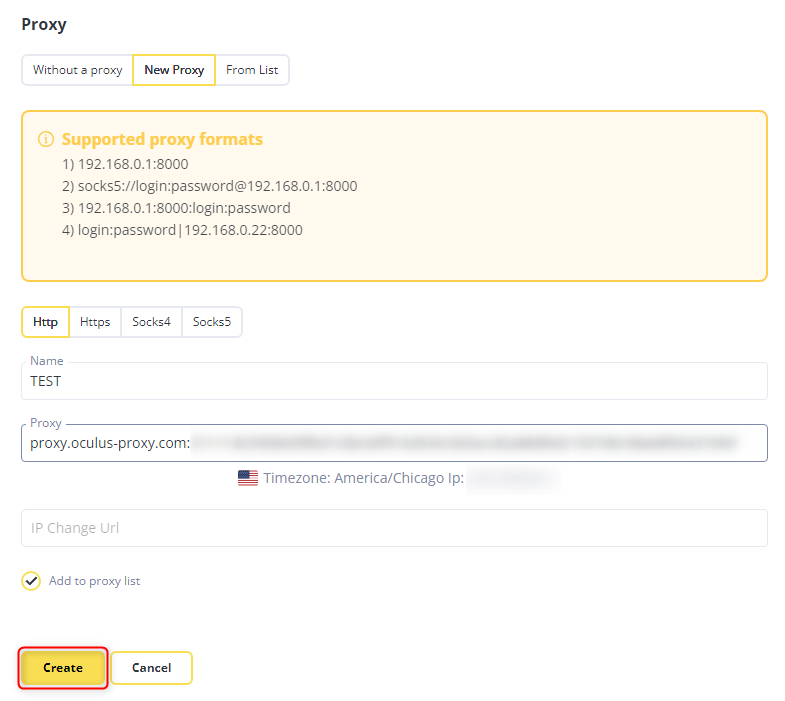
2\. Enter the following information:
* **Protocol:** Select `HTTP`, `HTTPS`, or `SOCKS5` based on your proxy type.
* **Host:** `proxy.oculus-proxy.com`
* **Port:** Use the port number provided in your Oculus dashboard.
* **Username:** Your Oculus proxy **username**.
* **Password:** Your Oculus proxy **password**.
3\. Click **Check Proxy** to verify the connection.
4\. Once verified, click **Save** to apply the settings.
1\. Log in to your [Oculus Dashboard](https://oculusproxies.com/dashboard) to retrieve your proxy details.
2\. Enter the following information:
* **Protocol:** Select `HTTP`, `HTTPS`, or `SOCKS5` based on your proxy type.
* **Host:** `proxy.oculus-proxy.com`
* **Port:** Use the port number provided in your Oculus dashboard.
* **Username:** Your Oculus proxy **username**.
* **Password:** Your Oculus proxy **password**.
3\. Click **Check Proxy** to verify the connection.
4\. Once verified, click **Save** to apply the settings.
 **Need a location-specific proxy?** Add the country code to your username. Example: `your-username-country-US` to connect to a U.S. server.
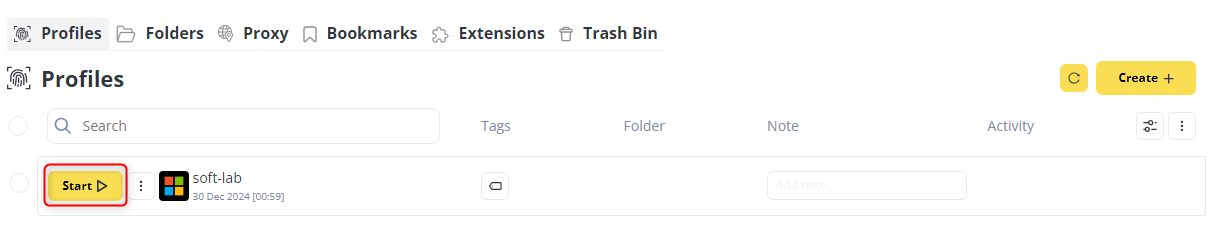
1\. Return to the **Profiles** tab and locate the browser profile you just created.
2\. Click **Start** to launch the profile with the configured Oculus Proxy settings.
**Need a location-specific proxy?** Add the country code to your username. Example: `your-username-country-US` to connect to a U.S. server.
1\. Return to the **Profiles** tab and locate the browser profile you just created.
2\. Click **Start** to launch the profile with the configured Oculus Proxy settings.
 **Congratulations!** You’ve successfully integrated **Oculus Proxies** with **Antik**. Whether you're managing multiple accounts, scraping data, or handling geo-restricted tasks, this setup provides a secure and efficient browsing environment. 🚀