> ## Documentation Index
> Fetch the complete documentation index at: https://docs.oculusproxies.com/llms.txt
> Use this file to discover all available pages before exploring further.
# How to Use Oculus Proxies with Awesome Traffic Bot
> Elevate your traffic strategies using Awesome Traffic Bot combined with Oculus Proxies for private, stable, and continuous automation. Effortlessly direct quality traffic to search engines, business pages, or custom destinations while staying under the radar.
## What is Awesome Traffic Bot?
**Awesome Traffic Bot** is a highly capable and adaptable automation solution built to boost keyword click-through rates and deliver traffic across browsing platforms. Featuring integrated IP switching and compatibility with all traffic types—organic, referral, and direct—it provides exceptional versatility. When used alongside **Oculus Proxies**, the bot performs optimally on Windows servers, enabling precise, location-based traffic routing with complete campaign control.
If you're using **Oculus** to scrape search engines like **Google, Bing, or Yandex** and facing connection issues, your proxy type may need adjustment. **ISP Premium Proxies** provide stable and unrestricted access, preventing blocks that standard proxies may encounter. Switching to **ISP Premium Proxies** can improve performance.
## How to Integrate Oculus Proxies with Awesome Traffic Bot
[Download](https://dalga.dev/product/awesome-traffic-bot/) Awesome Traffic Bot.
Open the app, navigate to the **Campaigns** section, and click **New Campaign**.
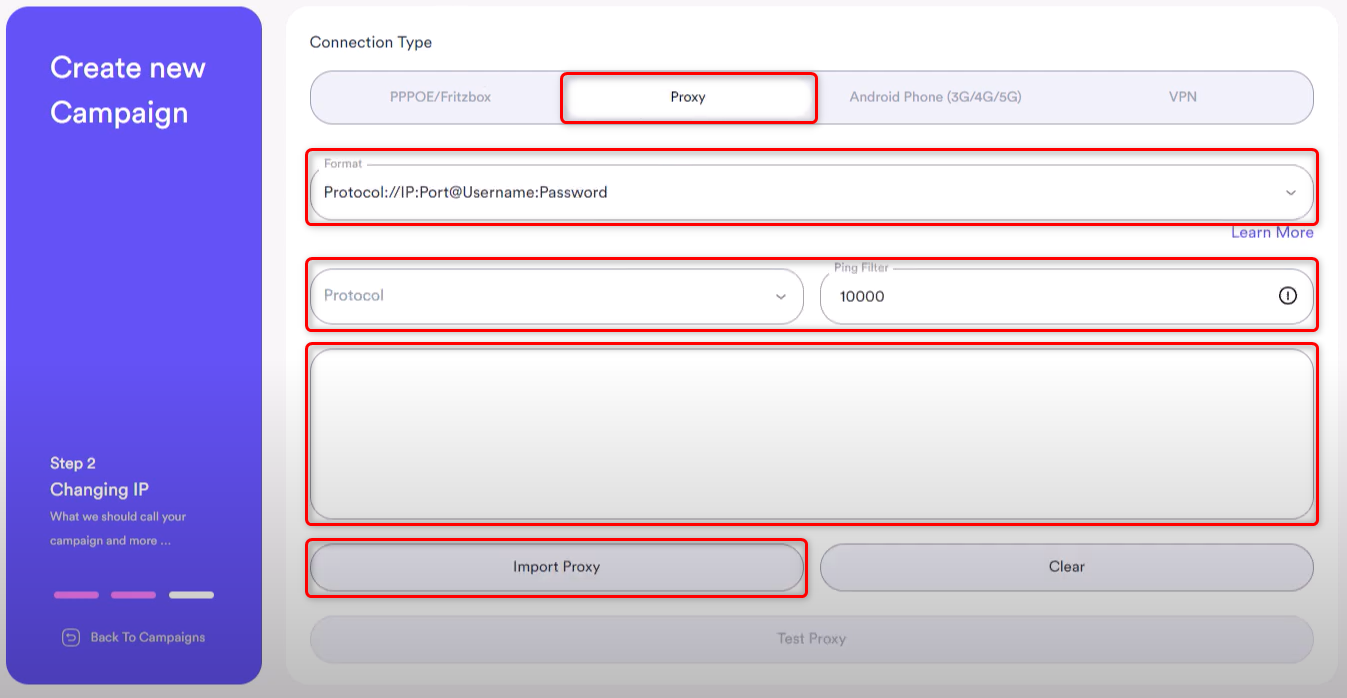
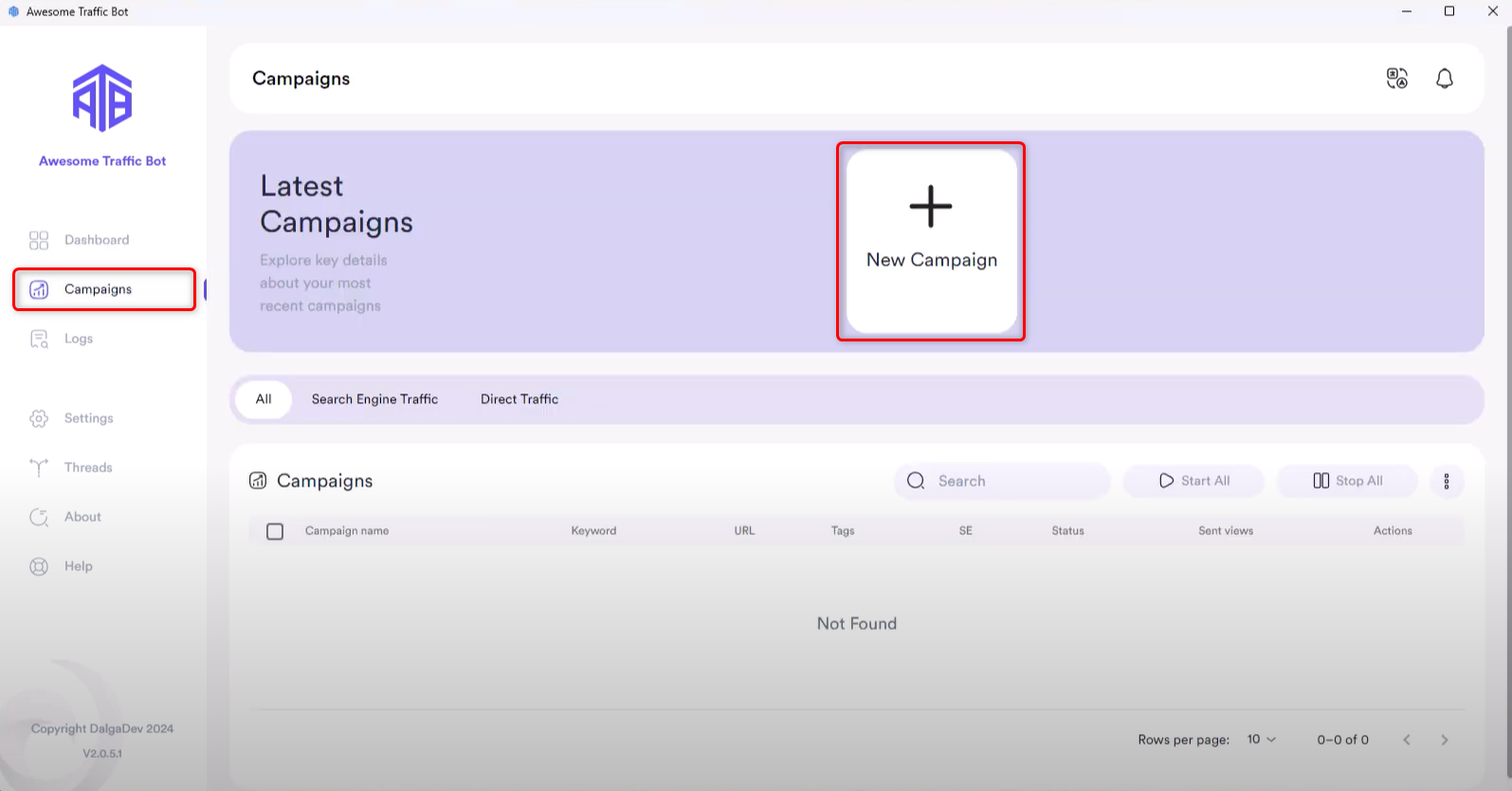 1. Once you've given your campaign a name, choose **Proxy** as the connection method.
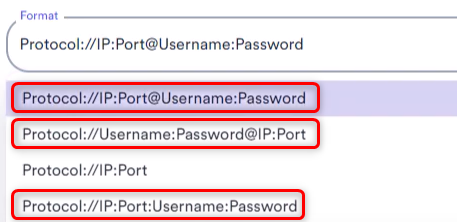
2. Select your desired Proxy `Format`, `Protocol`, and `Ping Filter`.
Oculus Proxies need login credentials, so be sure to select a filter option that supports both a username and password
3. You can either paste a single proxy into the textbox or upload multiple proxies using the **Import Proxy** button with a `.txt` file.
1. Once you've given your campaign a name, choose **Proxy** as the connection method.
2. Select your desired Proxy `Format`, `Protocol`, and `Ping Filter`.
Oculus Proxies need login credentials, so be sure to select a filter option that supports both a username and password
3. You can either paste a single proxy into the textbox or upload multiple proxies using the **Import Proxy** button with a `.txt` file.
 Press the **Test Proxy button** to check if the added proxies are working as expected.
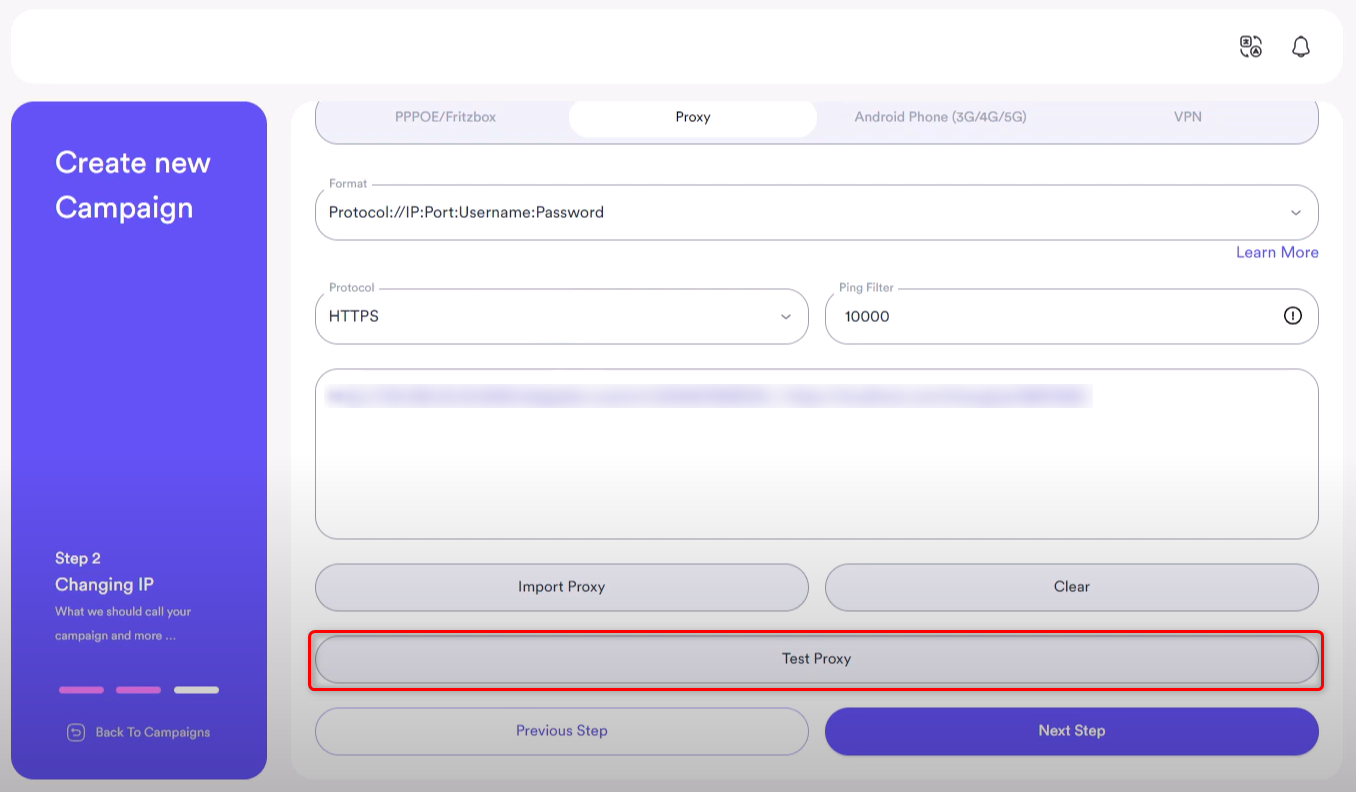 A status window will pop up, showing if the proxies are functioning correctly and can be used.
