> ## Documentation Index
> Fetch the complete documentation index at: https://docs.oculusproxies.com/llms.txt
> Use this file to discover all available pages before exploring further.
# How to Set Up Oculus Proxies With Capsolver
> Enhance your CAPTCHA-solving process by integrating Oculus Proxies with Capsolver. This setup ensures secure, anonymous, and efficient automation for bypassing CAPTCHA challenges.
 ## What is Capsolver?
**Capsolver** is a powerful CAPTCHA-solving service that automates bypassing CAPTCHA challenges across various platforms. It is widely used for **bulk CAPTCHA-solving**, **bot automation**, and **geo-restricted workflows**.
By pairing **Capsolver with Oculus Proxies**, you can enhance anonymity, maintain stable performance, and access region-specific CAPTCHA solutions without interruptions.
If you're using **Oculus** to access search engines like **Google, Bing, or Yandex** and facing connection issues, your proxy type may need adjustment. **ISP Premium Proxies** provide stable and unrestricted access, preventing blocks that standard proxies might encounter. Switching to **ISP Premium Proxies** can improve performance.
## How to Integrate Oculus Proxies With Capsolver
1\. Visit the official [Capsolver website](https://www.capsolver.com/).
2\. Log in to your account using your credentials.
3\. Ensure that the **Capsolver Extension** is installed and ready for proxy configuration.
1\. Open the **Capsolver Extension**.
2\. Navigate to the **Settings** section.
3\. Locate the **Proxy** option and toggle it *On* to enable proxy configuration.
## What is Capsolver?
**Capsolver** is a powerful CAPTCHA-solving service that automates bypassing CAPTCHA challenges across various platforms. It is widely used for **bulk CAPTCHA-solving**, **bot automation**, and **geo-restricted workflows**.
By pairing **Capsolver with Oculus Proxies**, you can enhance anonymity, maintain stable performance, and access region-specific CAPTCHA solutions without interruptions.
If you're using **Oculus** to access search engines like **Google, Bing, or Yandex** and facing connection issues, your proxy type may need adjustment. **ISP Premium Proxies** provide stable and unrestricted access, preventing blocks that standard proxies might encounter. Switching to **ISP Premium Proxies** can improve performance.
## How to Integrate Oculus Proxies With Capsolver
1\. Visit the official [Capsolver website](https://www.capsolver.com/).
2\. Log in to your account using your credentials.
3\. Ensure that the **Capsolver Extension** is installed and ready for proxy configuration.
1\. Open the **Capsolver Extension**.
2\. Navigate to the **Settings** section.
3\. Locate the **Proxy** option and toggle it *On* to enable proxy configuration.
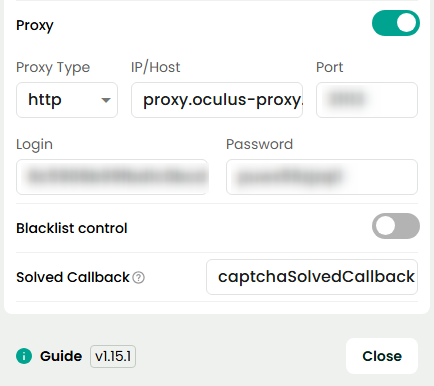
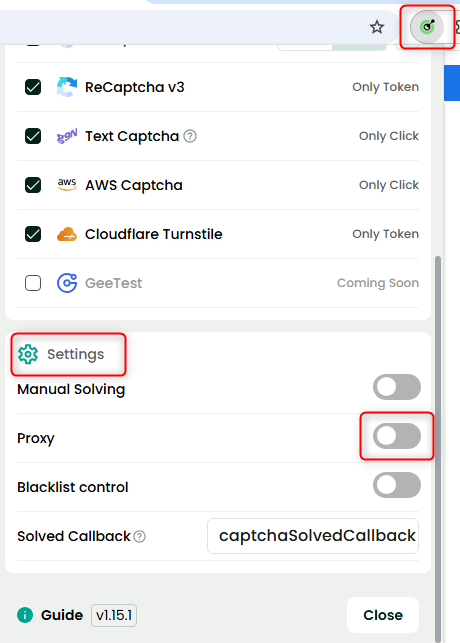 In the proxy configuration menu, enter your **Oculus Proxy** credentials:
* **Host:** `proxy.oculus-proxy.com`
* **Port:** Use the port number provided in your [Oculus Dashboard](https://oculusproxies.com/dashboard/page/plans).
* **Username:** Your **Oculus Proxy username**.
* **Password:** Your **Oculus Proxy password**.
In the proxy configuration menu, enter your **Oculus Proxy** credentials:
* **Host:** `proxy.oculus-proxy.com`
* **Port:** Use the port number provided in your [Oculus Dashboard](https://oculusproxies.com/dashboard/page/plans).
* **Username:** Your **Oculus Proxy username**.
* **Password:** Your **Oculus Proxy password**.
 **Need a region-specific proxy?** Modify your username to include the country code (e.g., `your-username-country-US` for a U.S.-based proxy).
1\. After entering your proxy details, click **Test Connection** to confirm that the proxy is working.
2\. Once verified, Capsolver will automatically use the configured proxy for all CAPTCHA-solving tasks.
**Congratulations!** You’ve successfully integrated **Oculus Proxies** with **Capsolver**. Your CAPTCHA-solving workflows are now more secure, stable, and efficient. 🚀
**Need a region-specific proxy?** Modify your username to include the country code (e.g., `your-username-country-US` for a U.S.-based proxy).
1\. After entering your proxy details, click **Test Connection** to confirm that the proxy is working.
2\. Once verified, Capsolver will automatically use the configured proxy for all CAPTCHA-solving tasks.
**Congratulations!** You’ve successfully integrated **Oculus Proxies** with **Capsolver**. Your CAPTCHA-solving workflows are now more secure, stable, and efficient. 🚀