> ## Documentation Index
> Fetch the complete documentation index at: https://docs.oculusproxies.com/llms.txt
> Use this file to discover all available pages before exploring further.
# How to Configure Oculus Proxies in Chrome
> Enhance your browsing privacy and access restricted content by configuring Oculus Proxies in Google Chrome. Follow this step-by-step guide to set up and manage your proxy settings easily.
 If you're using **Oculus** to access search engines like **Google, Bing, or Yandex** and facing connection issues, your proxy type may need adjustment. **ISP Premium Proxies** provide stable and unrestricted access, preventing blocks that standard proxies might encounter. Switching to **ISP Premium Proxies** can improve performance.
## How to Set Up a Proxy in Chrome
1\. Launch **Google Chrome**.
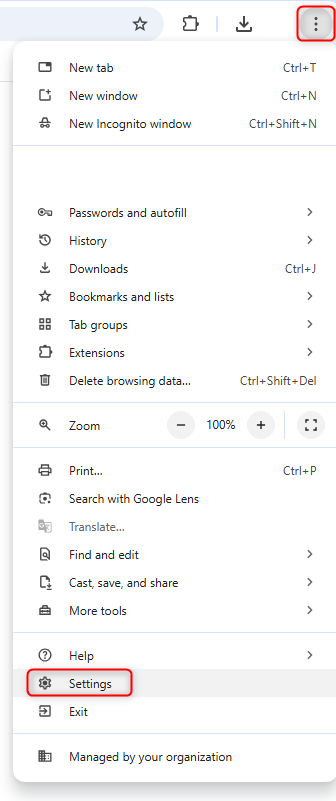
2\. Click the **three dots** (menu icon) in the top-right corner.
3\. Select **Settings** from the dropdown menu.
If you're using **Oculus** to access search engines like **Google, Bing, or Yandex** and facing connection issues, your proxy type may need adjustment. **ISP Premium Proxies** provide stable and unrestricted access, preventing blocks that standard proxies might encounter. Switching to **ISP Premium Proxies** can improve performance.
## How to Set Up a Proxy in Chrome
1\. Launch **Google Chrome**.
2\. Click the **three dots** (menu icon) in the top-right corner.
3\. Select **Settings** from the dropdown menu.
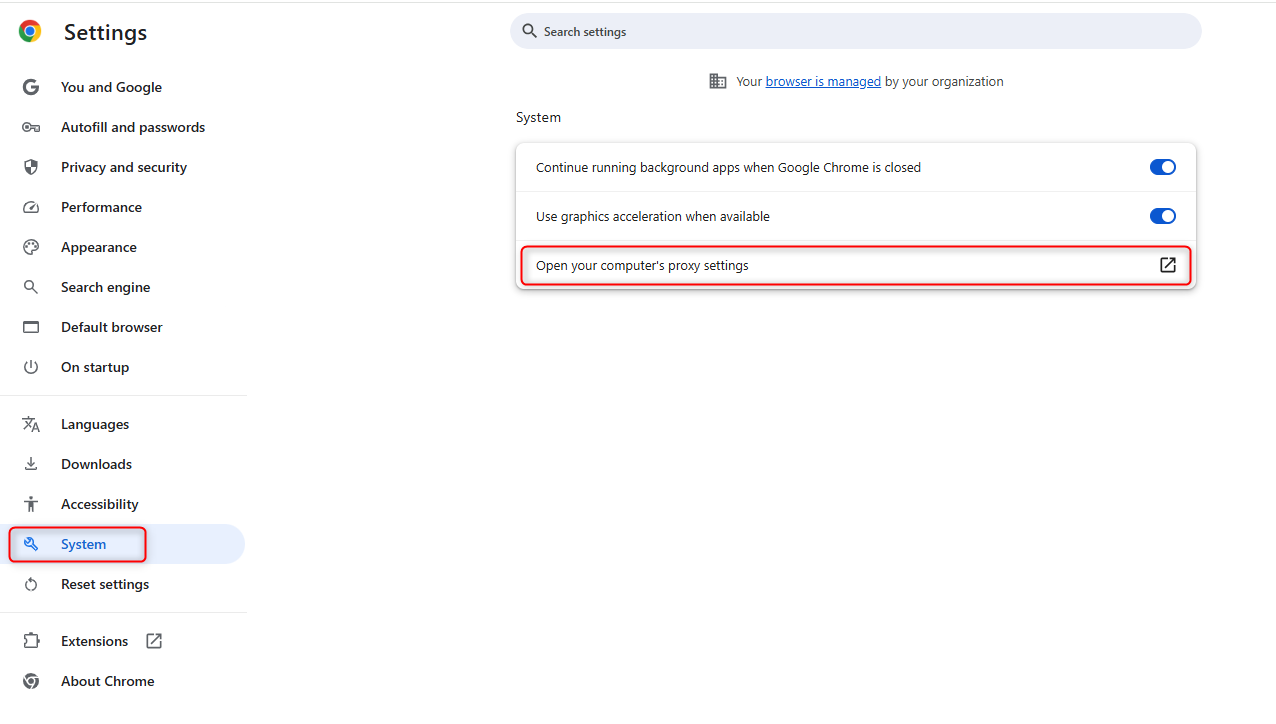
 1\. In the **Settings** menu, scroll down to the **System** section.
2\. Click **Open your computer’s proxy settings**.
1\. In the **Settings** menu, scroll down to the **System** section.
2\. Click **Open your computer’s proxy settings**.
 Since Chrome relies on your operating system's proxy settings, you’ll need to configure them accordingly:
Follow the step-by-step guide for [Windows proxy](https://docs.oculusproxies.com/integration-guides/windows) configuration.
Follow the step-by-step guide for [macOS proxy](https://docs.oculusproxies.com/integration-guides/macos) configuration.
**Congratulations!** Your **Chrome** browser is now securely connected through **Oculus Proxies**. You can now browse anonymously, bypass geo-restrictions, and manage multiple accounts without interruptions. 🚀
Since Chrome relies on your operating system's proxy settings, you’ll need to configure them accordingly:
Follow the step-by-step guide for [Windows proxy](https://docs.oculusproxies.com/integration-guides/windows) configuration.
Follow the step-by-step guide for [macOS proxy](https://docs.oculusproxies.com/integration-guides/macos) configuration.
**Congratulations!** Your **Chrome** browser is now securely connected through **Oculus Proxies**. You can now browse anonymously, bypass geo-restrictions, and manage multiple accounts without interruptions. 🚀