> ## Documentation Index
> Fetch the complete documentation index at: https://docs.oculusproxies.com/llms.txt
> Use this file to discover all available pages before exploring further.
# How to Set Up Oculus Proxies With DuoPlus
> Expand your global reach with DuoPlus cloud phones, designed to optimize ads, short videos, and live sales for seamless monetization.
 ## What is DuoPlus?
**DuoPlus** is an advanced cloud phone solution that supports all major platforms, helping businesses scale their digital presence effortlessly. Featuring global GPS positioning, an extensive SIM card library, and real ARM chip phones, DuoPlus replicates real-world mobile conditions to ensure high engagement and authenticity. Whether you're managing ad campaigns, growing social media accounts, or running live commerce, **DuoPlus combined with Oculus Proxies** offers the essential tools to enhance performance and drive success on a global scale.
If you're using **Oculus** to access search engines like **Google, Bing, or Yandex** and facing connection issues, your proxy type may need adjustment. **ISP Premium Proxies** provide stable and unrestricted access, preventing blocks that standard proxies might encounter. Switching to **ISP Premium Proxies** can improve performance.
DuoPlus supports SOCKS5 proxies only!
## How to Integrate Oculus Proxies With DuoPlus
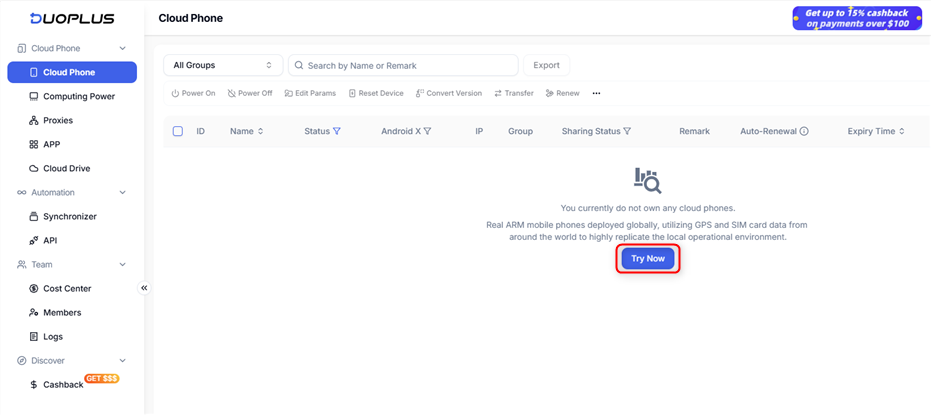
Access your [DuoPlus dashboard](https://my.duoplus.net/?locale=en) and click **Try Now** to create a new Cloud Phone if you don’t already have one.
## What is DuoPlus?
**DuoPlus** is an advanced cloud phone solution that supports all major platforms, helping businesses scale their digital presence effortlessly. Featuring global GPS positioning, an extensive SIM card library, and real ARM chip phones, DuoPlus replicates real-world mobile conditions to ensure high engagement and authenticity. Whether you're managing ad campaigns, growing social media accounts, or running live commerce, **DuoPlus combined with Oculus Proxies** offers the essential tools to enhance performance and drive success on a global scale.
If you're using **Oculus** to access search engines like **Google, Bing, or Yandex** and facing connection issues, your proxy type may need adjustment. **ISP Premium Proxies** provide stable and unrestricted access, preventing blocks that standard proxies might encounter. Switching to **ISP Premium Proxies** can improve performance.
DuoPlus supports SOCKS5 proxies only!
## How to Integrate Oculus Proxies With DuoPlus
Access your [DuoPlus dashboard](https://my.duoplus.net/?locale=en) and click **Try Now** to create a new Cloud Phone if you don’t already have one.
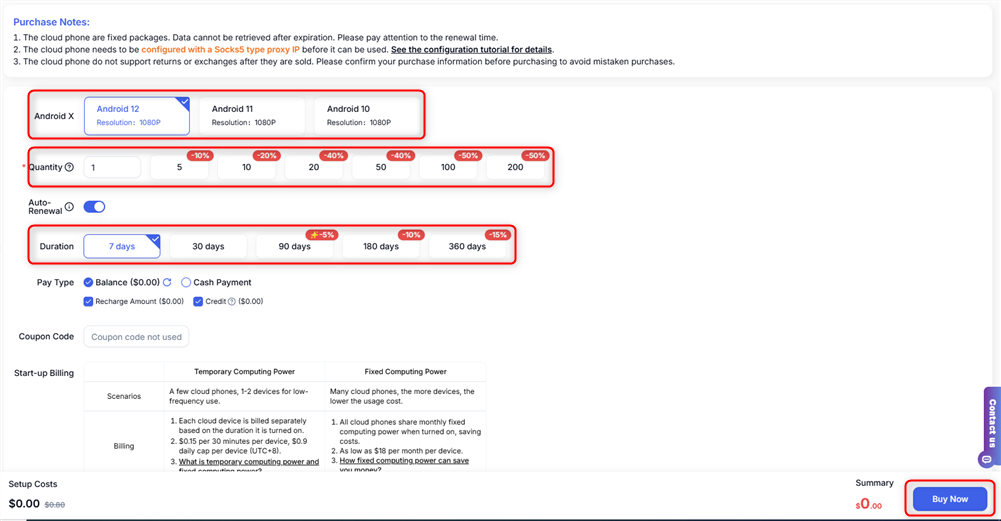
 In the **Cloud Phone dashboard**, select your preferred **Android version**, specify the **Quantity** and **Duration**, then click **Buy Now**.
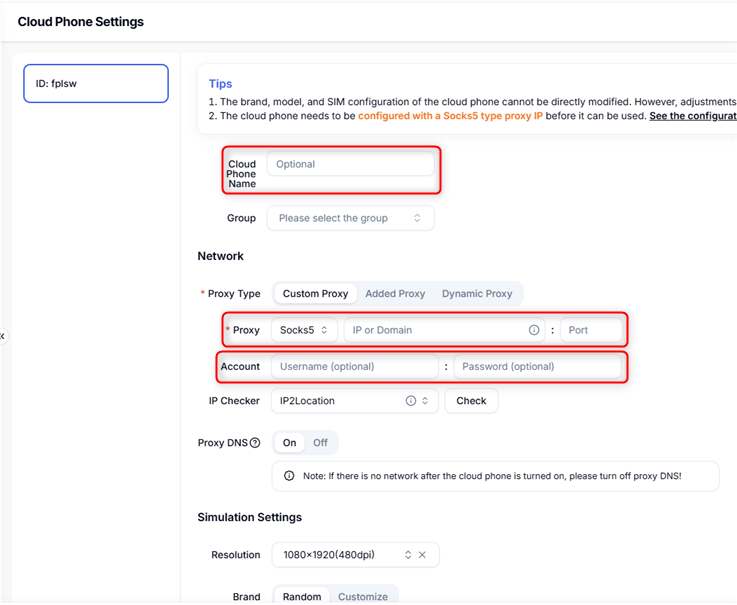
 * A configuration page will appear. Assign a `name` for your Cloud Phone, navigate to Network, and select **SOCKS5**.
* Enter your proxy credentials: `Host`, `Port`, `Username`, and `Password`.
Reminder: DuoPlus supports SOCKS5 proxies only!
* A configuration page will appear. Assign a `name` for your Cloud Phone, navigate to Network, and select **SOCKS5**.
* Enter your proxy credentials: `Host`, `Port`, `Username`, and `Password`.
Reminder: DuoPlus supports SOCKS5 proxies only!
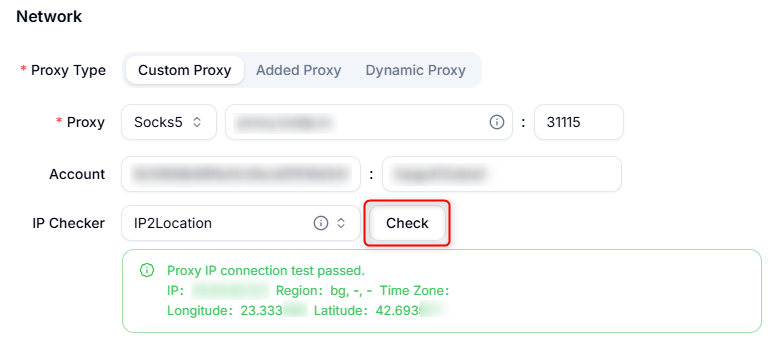
 Hit the **Check button** to test the proxy connection. If successful, a green tab will appear displaying the proxy details.
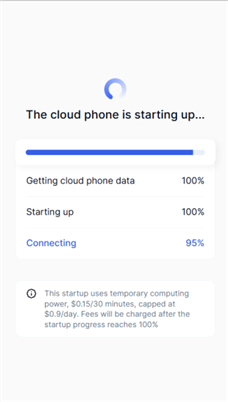
 Finalize the configuration, return to the main dashboard, and click **Power On** to activate your Cloud Phone.
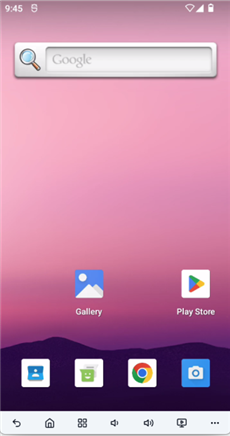
 The phone window will launch automatically, allowing you to begin using it right away.