> ## Documentation Index
> Fetch the complete documentation index at: https://docs.oculusproxies.com/llms.txt
> Use this file to discover all available pages before exploring further.
# How to Set Up Oculus Proxies With Fluxguard
> Looking for a secure and private way to monitor website updates with Fluxguard? Oculus Proxies integration ensures anonymous tracking, unrestricted access, and undetectable browsing, giving you full control over your monitoring activities.
 ## What is Fluxguard?
**Fluxguard** provides an advanced solution for detecting and analyzing critical changes in web data. Its AI-powered crawler continuously scans websites for updates, reducing false positives and minimizing manual effort. With automated workflows and real-time insights, it enhances efficiency and ensures accurate monitoring. Pairing Fluxguard with **Oculus Proxies** allows you to track website changes discreetly, bypass restrictions, and maintain complete privacy.
If you're using **Oculus** to access search engines like **Google, Bing, or Yandex** and experiencing connection issues, your proxy type may need adjustment. **ISP Premium Proxies** provide stable and unrestricted access, preventing blocks that standard proxies might encounter. Switching to **ISP Premium Proxies** can improve performance.
## How to Integrate Oculus Proxies With Fluxguard
Sign up and access the [Fluxguard dashboard](https://app.fluxguard.com/).
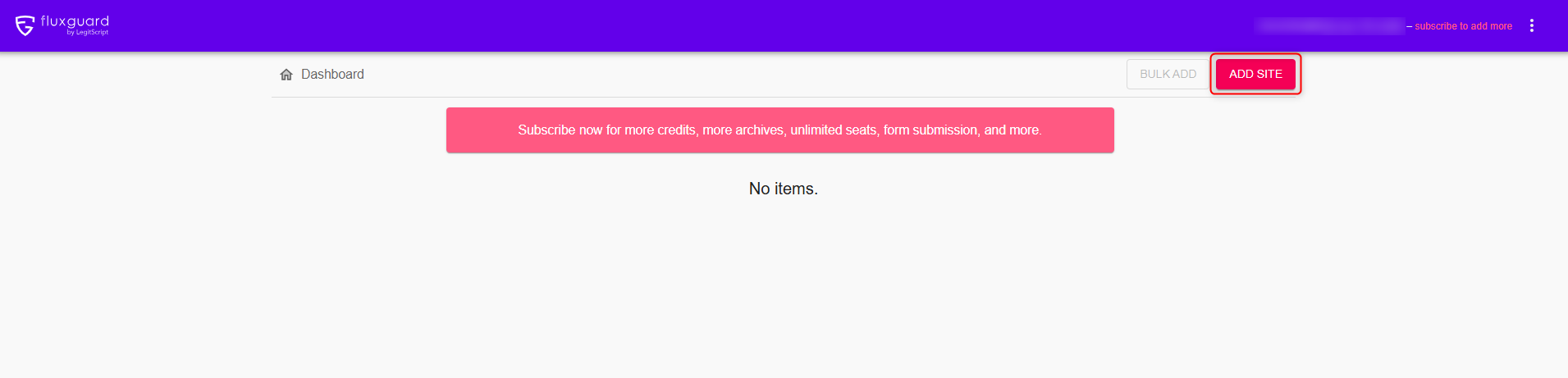
In the dashboard, click **ADD SITE**.
## What is Fluxguard?
**Fluxguard** provides an advanced solution for detecting and analyzing critical changes in web data. Its AI-powered crawler continuously scans websites for updates, reducing false positives and minimizing manual effort. With automated workflows and real-time insights, it enhances efficiency and ensures accurate monitoring. Pairing Fluxguard with **Oculus Proxies** allows you to track website changes discreetly, bypass restrictions, and maintain complete privacy.
If you're using **Oculus** to access search engines like **Google, Bing, or Yandex** and experiencing connection issues, your proxy type may need adjustment. **ISP Premium Proxies** provide stable and unrestricted access, preventing blocks that standard proxies might encounter. Switching to **ISP Premium Proxies** can improve performance.
## How to Integrate Oculus Proxies With Fluxguard
Sign up and access the [Fluxguard dashboard](https://app.fluxguard.com/).
In the dashboard, click **ADD SITE**.
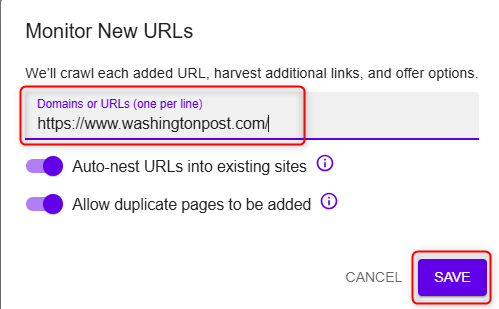
 Enter the **URL** you want to monitor, and click **SAVE**.
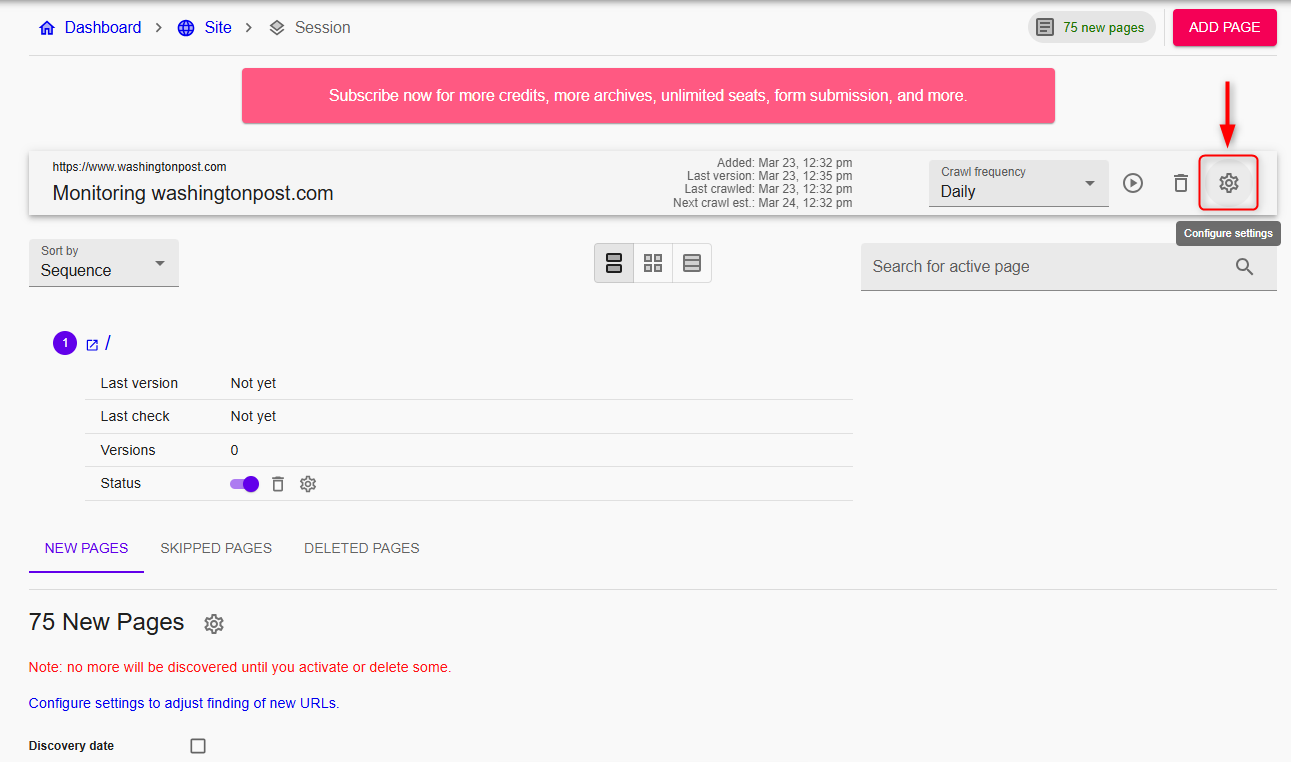
 When the following window shows up, head to **Session settings**.
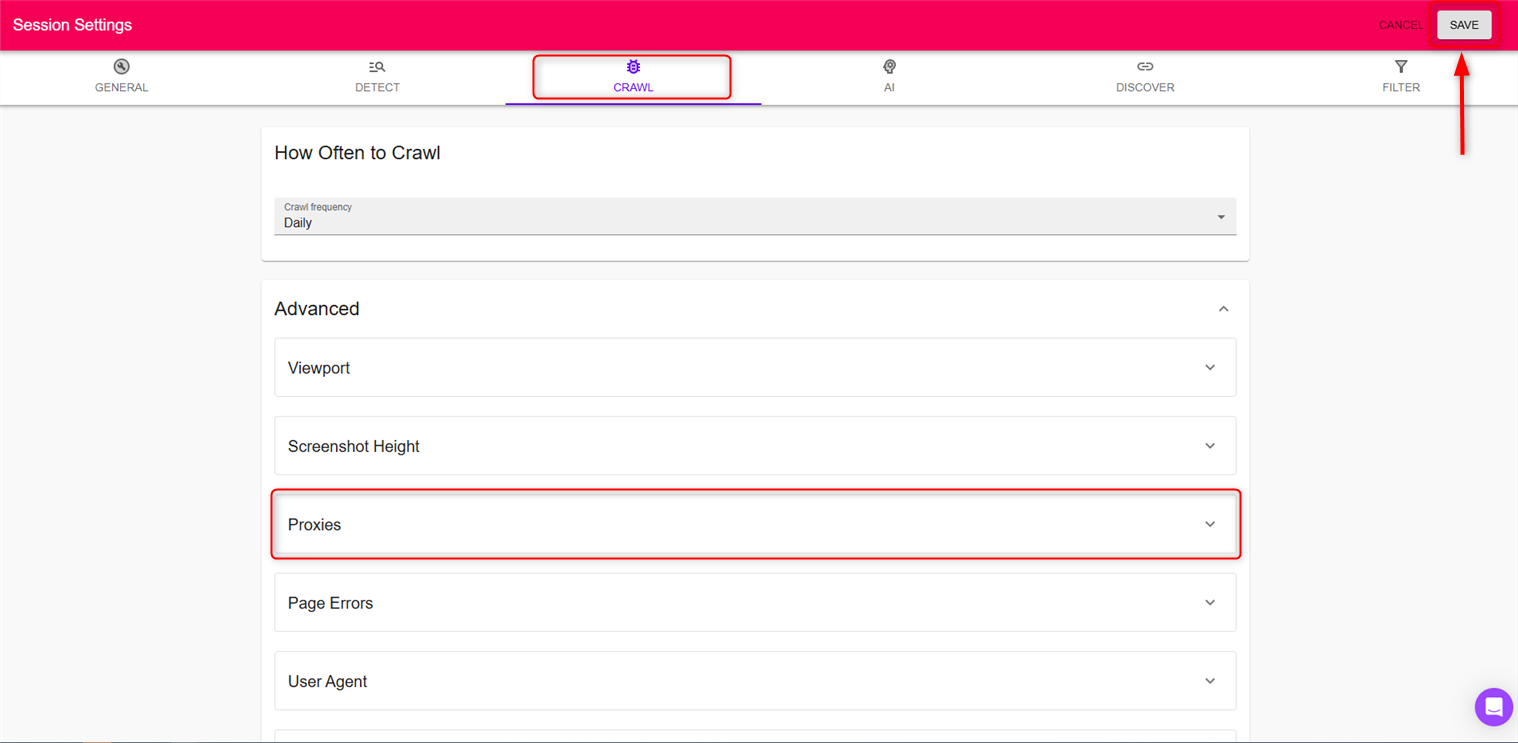
 Navigate to the **CRAWL** tab and select the **Proxies** sub-tab, enter the necessary proxy details using one of the two available methods:
* Quick insert: `username:password@host:port`
* Or separately: `Host`, `Port`, `Username`, `Password`.
Hit **Save** and return to your [dashboard](https://app.fluxguard.com/) for monitoring.
Navigate to the **CRAWL** tab and select the **Proxies** sub-tab, enter the necessary proxy details using one of the two available methods:
* Quick insert: `username:password@host:port`
* Or separately: `Host`, `Port`, `Username`, `Password`.
Hit **Save** and return to your [dashboard](https://app.fluxguard.com/) for monitoring.