> ## Documentation Index
> Fetch the complete documentation index at: https://docs.oculusproxies.com/llms.txt
> Use this file to discover all available pages before exploring further.
# How to Set Up Oculus Proxies With FoxyProxy
> Enhance your proxy management experience with FoxyProxy! Integrate Oculus Proxies to easily switch between proxies, ensuring seamless, secure, and efficient browsing. Follow this step-by-step guide to configure Oculus Proxies in FoxyProxy.
 ## What is FoxyProxy?
**FoxyProxy** is a browser extension for **Chrome** and **Firefox** that simplifies **proxy management**. It allows users to switch between proxies effortlessly, making it an ideal tool for:
* **Web scraping**
* **Testing applications**
* **Bypassing geo-restrictions**
* **Anonymous and secure browsing**
By integrating **Oculus Proxies**, you can enhance your privacy and ensure uninterrupted access to restricted content.
If you're using **Oculus** to access search engines like **Google, Bing, or Yandex** and experiencing connection issues, your proxy type may need adjustment. **ISP Premium Proxies** provide stable and unrestricted access, preventing blocks that standard proxies might encounter. Switching to **ISP Premium Proxies** can improve performance.
## How to Integrate Oculus Proxies With FoxyProxy
* **For Chrome:** Get FoxyProxy from the [Chrome Web Store](https://chromewebstore.google.com/detail/foxyproxy/gcknhkkoolaabfmlnjonogaaifnjlfnp).
* **For Firefox:** Download it from the [Mozilla Add-ons page](https://addons.mozilla.org/en-US/firefox/addon/foxyproxy-standard/).
Once installed, the **FoxyProxy** icon will appear in your browser toolbar.
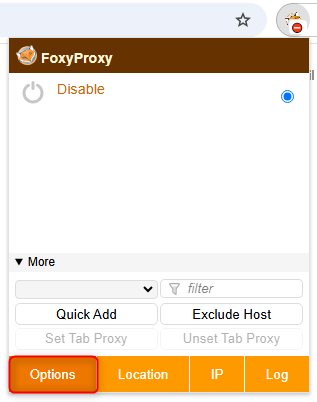
1\. Right-click the **FoxyProxy** icon in your toolbar.
2\. Select **Options** to open the proxy configuration page.
## What is FoxyProxy?
**FoxyProxy** is a browser extension for **Chrome** and **Firefox** that simplifies **proxy management**. It allows users to switch between proxies effortlessly, making it an ideal tool for:
* **Web scraping**
* **Testing applications**
* **Bypassing geo-restrictions**
* **Anonymous and secure browsing**
By integrating **Oculus Proxies**, you can enhance your privacy and ensure uninterrupted access to restricted content.
If you're using **Oculus** to access search engines like **Google, Bing, or Yandex** and experiencing connection issues, your proxy type may need adjustment. **ISP Premium Proxies** provide stable and unrestricted access, preventing blocks that standard proxies might encounter. Switching to **ISP Premium Proxies** can improve performance.
## How to Integrate Oculus Proxies With FoxyProxy
* **For Chrome:** Get FoxyProxy from the [Chrome Web Store](https://chromewebstore.google.com/detail/foxyproxy/gcknhkkoolaabfmlnjonogaaifnjlfnp).
* **For Firefox:** Download it from the [Mozilla Add-ons page](https://addons.mozilla.org/en-US/firefox/addon/foxyproxy-standard/).
Once installed, the **FoxyProxy** icon will appear in your browser toolbar.
1\. Right-click the **FoxyProxy** icon in your toolbar.
2\. Select **Options** to open the proxy configuration page.
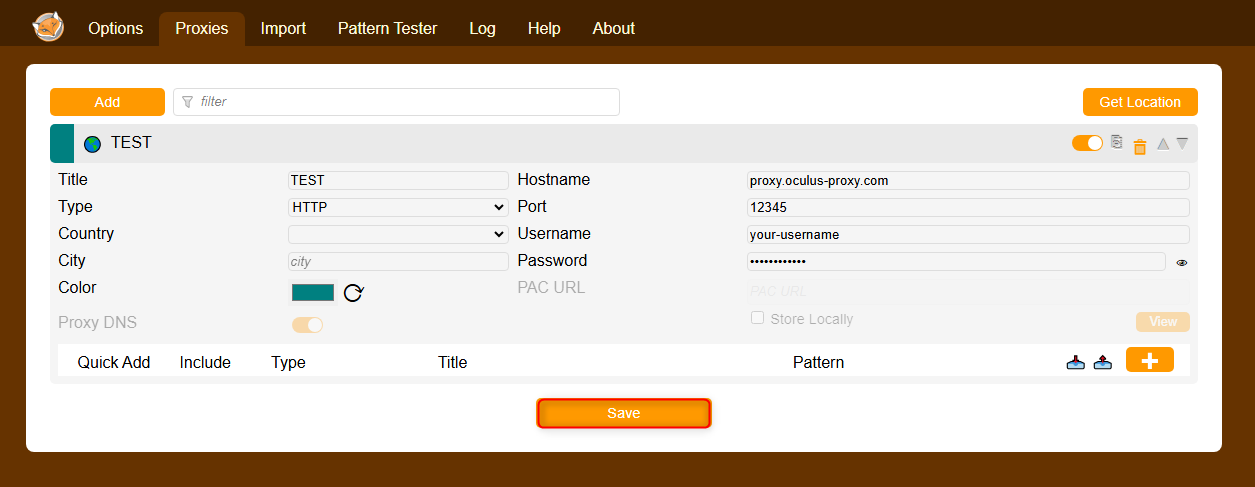
 1\. Navigate to the **Proxies** tab in the settings menu.
2\. Click **Add** to create a new proxy configuration.
1\. Navigate to the **Proxies** tab in the settings menu.
2\. Click **Add** to create a new proxy configuration.
 1\. In the proxy configuration window, enter your **Oculus Proxy** details:
* **Type:** Choose `HTTP`, `HTTPS`, or `SOCKS5` (depending on your proxy type).
* **Hostname:** `proxy.oculus-proxy.com`
* **Port:** Use the port number provided in your [Oculus Dashboard](https://oculusproxies.com/dashboard/page/plans).
* **Username:** Your **Oculus Proxy username**.
* **Password:** Your **Oculus Proxy password**.
2\. Click **Save** to store the settings.
1\. In the proxy configuration window, enter your **Oculus Proxy** details:
* **Type:** Choose `HTTP`, `HTTPS`, or `SOCKS5` (depending on your proxy type).
* **Hostname:** `proxy.oculus-proxy.com`
* **Port:** Use the port number provided in your [Oculus Dashboard](https://oculusproxies.com/dashboard/page/plans).
* **Username:** Your **Oculus Proxy username**.
* **Password:** Your **Oculus Proxy password**.
2\. Click **Save** to store the settings.
 **Need a location-specific proxy?** Modify your username by adding a country code (e.g., `your-username-country-US` for a U.S.-based proxy).
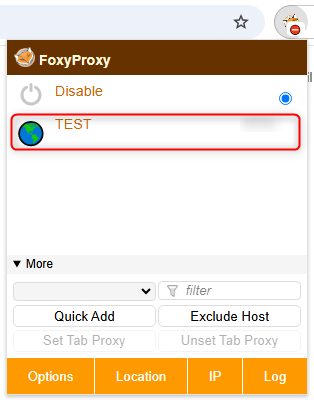
1\. Right-click the **FoxyProxy** icon in your toolbar.
2\. Select the proxy you just configured.
3\. Open [httpbin.org/ip](http://httpbin.org/ip) to verify that your proxy is active.
**Need a location-specific proxy?** Modify your username by adding a country code (e.g., `your-username-country-US` for a U.S.-based proxy).
1\. Right-click the **FoxyProxy** icon in your toolbar.
2\. Select the proxy you just configured.
3\. Open [httpbin.org/ip](http://httpbin.org/ip) to verify that your proxy is active.
 **Success!** You’ve now configured **Oculus Proxies** in **FoxyProxy**. This setup allows for seamless browsing, efficient web scraping, and secure online access. 🚀