> ## Documentation Index
> Fetch the complete documentation index at: https://docs.oculusproxies.com/llms.txt
> Use this file to discover all available pages before exploring further.
# How to Set Up Oculus Proxies With Geelark
> Enhance your privacy and efficiency by integrating Oculus Proxies with Geelark. This guide walks you through the step-by-step process of setting up secure and anonymous browsing with Geelark.
 ## What is Geelark?
**Geelark** is a powerful browser profile management tool designed for privacy-focused users and professionals. It allows you to create isolated browsing environments, manage multiple online accounts, and customize profiles to suit your needs. By integrating Oculus Proxies, you can enhance Geelark’s capabilities, ensuring anonymity and smooth access to restricted or region-specific resources.
If you're using **Oculus** to access search engines like **Google, Bing, or Yandex** and facing connection issues, your proxy type may need adjustment. **ISP Premium Proxies** provide stable and unrestricted access, preventing blocks that standard proxies might encounter. Switching to **ISP Premium Proxies** can improve performance.
## How to Integrate Oculus Proxies With Geelark
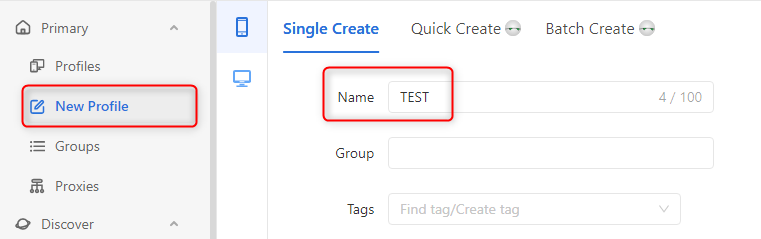
1\. Open the **Geelark Dashboard** and click **New Profile**.
2\. Assign a **Profile Name** and select the operating system for the profile.
## What is Geelark?
**Geelark** is a powerful browser profile management tool designed for privacy-focused users and professionals. It allows you to create isolated browsing environments, manage multiple online accounts, and customize profiles to suit your needs. By integrating Oculus Proxies, you can enhance Geelark’s capabilities, ensuring anonymity and smooth access to restricted or region-specific resources.
If you're using **Oculus** to access search engines like **Google, Bing, or Yandex** and facing connection issues, your proxy type may need adjustment. **ISP Premium Proxies** provide stable and unrestricted access, preventing blocks that standard proxies might encounter. Switching to **ISP Premium Proxies** can improve performance.
## How to Integrate Oculus Proxies With Geelark
1\. Open the **Geelark Dashboard** and click **New Profile**.
2\. Assign a **Profile Name** and select the operating system for the profile.
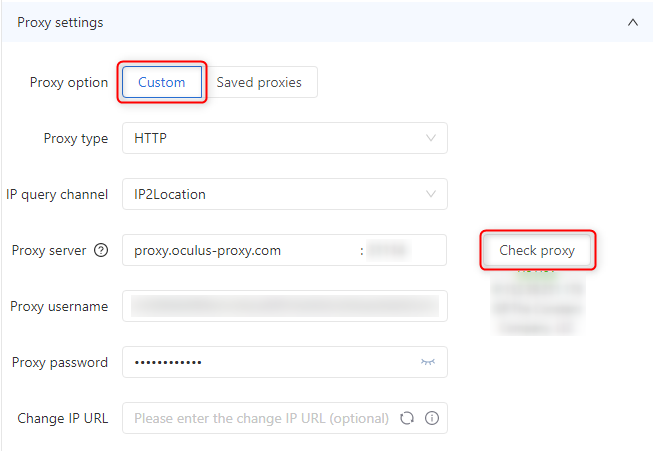
 1\. In the **Proxy Settings** section, choose **Custom**.
2\. Select the **Proxy Type** (`HTTP`, `HTTPS`, or `SOCKS5`) based on your Oculus Proxy configuration.
3\. Enter your **Oculus Proxy** credentials:
* **Proxy Server:** `proxy.oculus-proxy.com`
* **Port:** Use the port number from your [Oculus Dashboard](https://oculusproxies.com/dashboard/page/plans).
* **Username:** Your **Oculus Proxy username**.
* **Password:** Your **Oculus Proxy password**.
4\. Click **Check Proxy** to verify the connection. If the test is successful, proceed to the next step.
1\. In the **Proxy Settings** section, choose **Custom**.
2\. Select the **Proxy Type** (`HTTP`, `HTTPS`, or `SOCKS5`) based on your Oculus Proxy configuration.
3\. Enter your **Oculus Proxy** credentials:
* **Proxy Server:** `proxy.oculus-proxy.com`
* **Port:** Use the port number from your [Oculus Dashboard](https://oculusproxies.com/dashboard/page/plans).
* **Username:** Your **Oculus Proxy username**.
* **Password:** Your **Oculus Proxy password**.
4\. Click **Check Proxy** to verify the connection. If the test is successful, proceed to the next step.
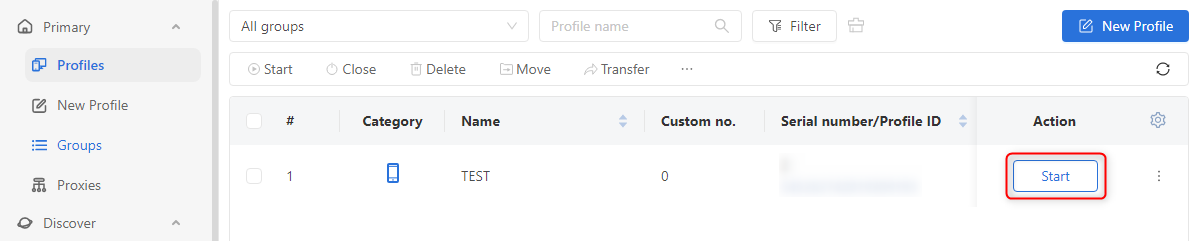
 1\. Click **OK** to save the profile settings.
2\. Locate the newly created profile on the **Geelark Dashboard** and click **Start** to launch it.
1\. Click **OK** to save the profile settings.
2\. Locate the newly created profile on the **Geelark Dashboard** and click **Start** to launch it.
 1\. Inside the **Geelark profile**, open a web browser.
2\. Go to [httpbin.org/ip](http://httpbin.org/ip) to check your IP address.
3\. Ensure the displayed IP matches your **Oculus Proxy**, confirming the successful configuration.
**Success!** You’ve now integrated **Oculus Proxies** with **Geelark**. Whether you’re managing multiple accounts, automating tasks, or accessing geo-restricted content, your browsing is now **private, secure, and efficient**. 🚀
1\. Inside the **Geelark profile**, open a web browser.
2\. Go to [httpbin.org/ip](http://httpbin.org/ip) to check your IP address.
3\. Ensure the displayed IP matches your **Oculus Proxy**, confirming the successful configuration.
**Success!** You’ve now integrated **Oculus Proxies** with **Geelark**. Whether you’re managing multiple accounts, automating tasks, or accessing geo-restricted content, your browsing is now **private, secure, and efficient**. 🚀