> ## Documentation Index
> Fetch the complete documentation index at: https://docs.oculusproxies.com/llms.txt
> Use this file to discover all available pages before exploring further.
# How to Set Up Oculus Proxies With GSA Search Engine Ranker
> Boost your SEO efforts with GSA Search Engine Ranker, a powerful tool for automating backlink creation. By leveraging its advanced features, you can streamline the process of finding new websites, registering accounts, and submitting content—all without manual intervention.
 ## What is GSA Search Engine Ranker?
GSA Search Engine Ranker is an advanced SEO automation tool designed to create backlinks continuously. Running 24/7, it independently discovers new sites, registers accounts, and submits content, eliminating the need for manual link-building. Together with **Oculus Proxies** users can customize projects to align with their SEO strategies, track backlink statistics, and manage content efficiently. With proxy support, filtering options, and external API integrations, GSA SER is a powerful solution for improving online visibility and boosting search engine rankings.
If you're using **Oculus** to access search engines like **Google, Bing, or Yandex** and experiencing connection issues, your proxy type may need adjustment. **ISP Premium Proxies** provide stable and unrestricted access, preventing blocks that standard proxies might encounter. Switching to **ISP Premium Proxies** can improve performance.
## How to Integrate Oculus Proxies With GSA Search Engine Ranker
[Get GSA Search Engine Ranker](https://www.gsa-online.de/en/product/search_engine_ranker/) and complete the installation process.
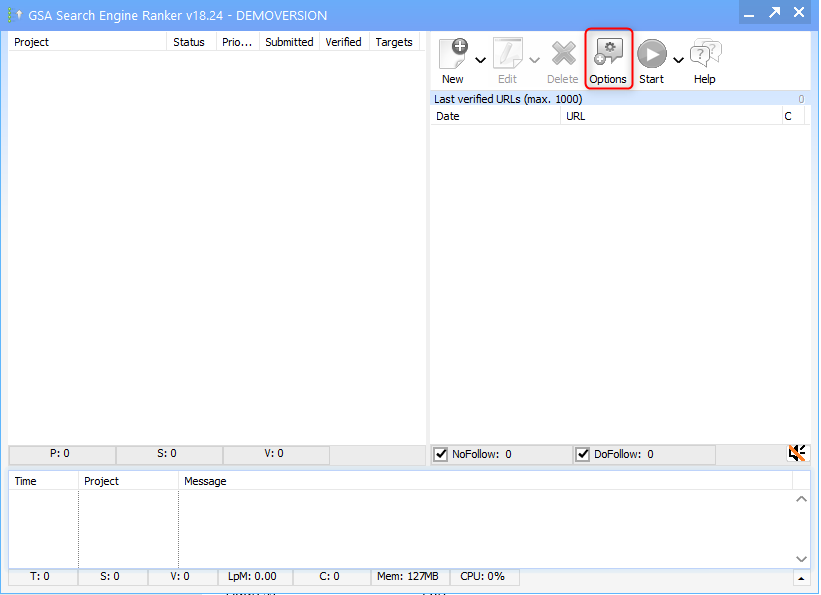
Launch the software and navigate to the **Options** menu.
## What is GSA Search Engine Ranker?
GSA Search Engine Ranker is an advanced SEO automation tool designed to create backlinks continuously. Running 24/7, it independently discovers new sites, registers accounts, and submits content, eliminating the need for manual link-building. Together with **Oculus Proxies** users can customize projects to align with their SEO strategies, track backlink statistics, and manage content efficiently. With proxy support, filtering options, and external API integrations, GSA SER is a powerful solution for improving online visibility and boosting search engine rankings.
If you're using **Oculus** to access search engines like **Google, Bing, or Yandex** and experiencing connection issues, your proxy type may need adjustment. **ISP Premium Proxies** provide stable and unrestricted access, preventing blocks that standard proxies might encounter. Switching to **ISP Premium Proxies** can improve performance.
## How to Integrate Oculus Proxies With GSA Search Engine Ranker
[Get GSA Search Engine Ranker](https://www.gsa-online.de/en/product/search_engine_ranker/) and complete the installation process.
Launch the software and navigate to the **Options** menu.
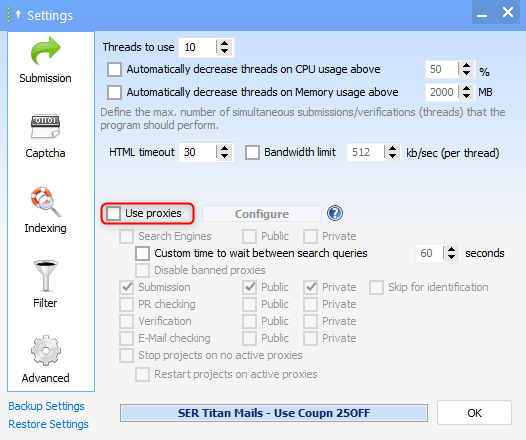
 In the **Submissions** section, check the box for **Use proxies**.
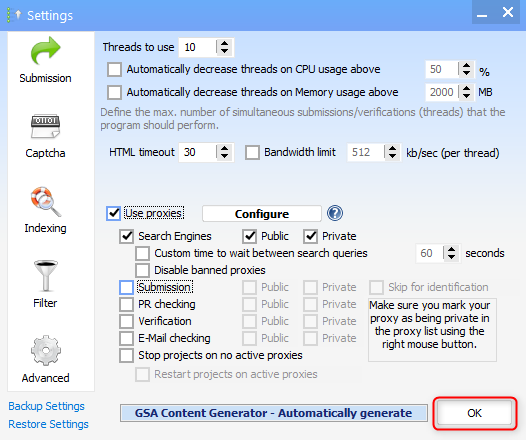
 Click **OK** to save your changes.
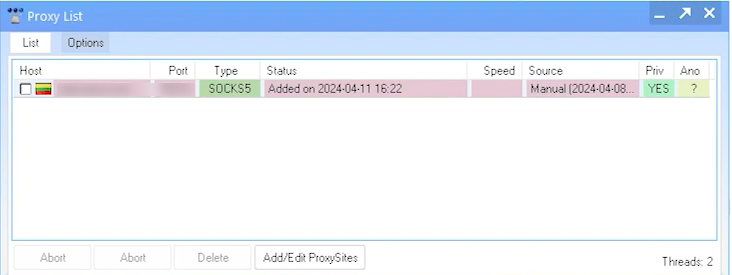
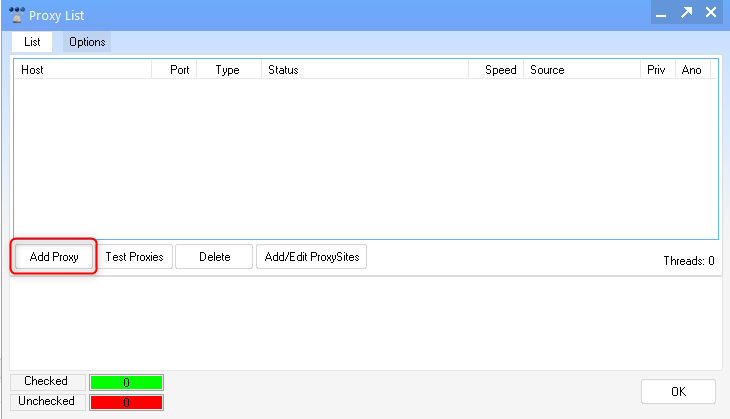
 When the proxy settings window appears, click **Add Proxy**.
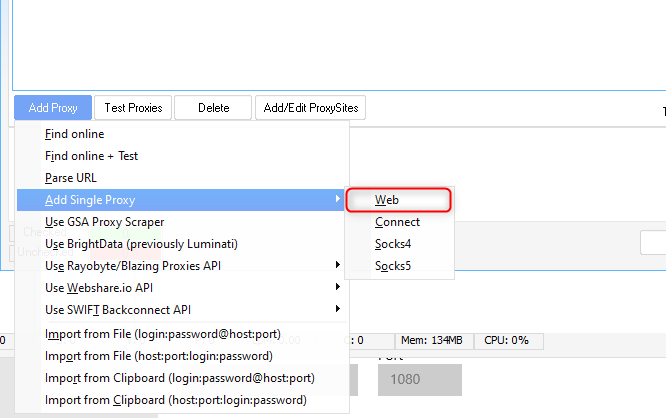
 Choose **Add Single Proxy → Web**.
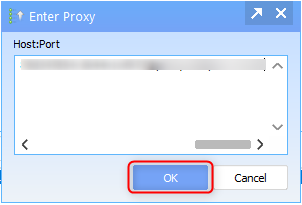
 Input the proxy information in this format:`Username: Password@Host: Port` and click **OK**.
 When prompted, run a **proxy test** to ensure it is working correctly.