> ## Documentation Index
> Fetch the complete documentation index at: https://docs.oculusproxies.com/llms.txt
> Use this file to discover all available pages before exploring further.
# How to Set Up Oculus Proxies With Opera GX
> Get the ultimate gaming experience with Opera GX by integrating Oculus Proxies! Designed for gamers all within a secure and private browsing environment.
 ## What is Opera GX?
**Opera GX** is a browser built for gamers, offering high performance and extensive customization options. GX Corner provides access to free games and exclusive deals, while My Flow enables seamless link sharing between mobile and desktop. Personalize your experience with custom skins and enjoy a secure, private browsing environment. By integrating **Oculus Proxies**, you can boost anonymity, minimize lag, and unlock geo-restricted content with ease.
If you're using **Oculus** to access search engines like **Google, Bing, or Yandex** and facing connection issues, the proxy type could be the reason. **ISP Premium Proxies** ensure stable and unrestricted access, preventing blocks that standard proxies might encounter. Switching to **ISP Premium Proxies** can help maintain smooth and reliable performance.
[Download Opera GX](https://www.opera.com/gx) and install it.
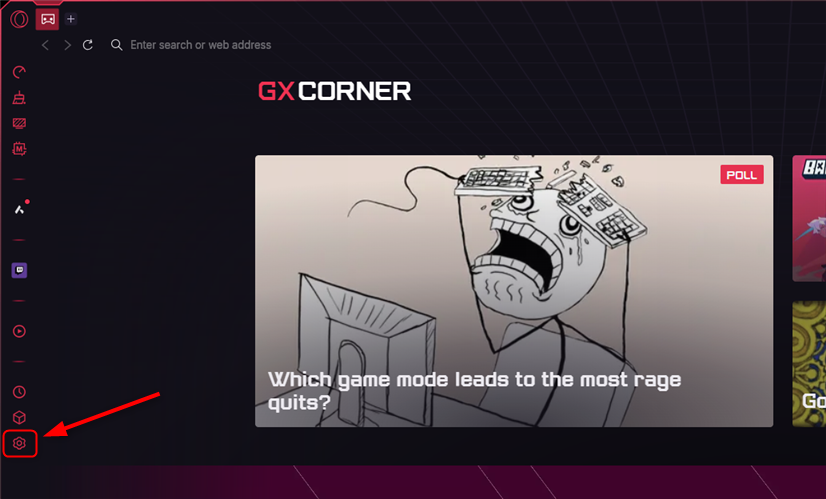
Go to **Settings** menu from the left sidebar.
## What is Opera GX?
**Opera GX** is a browser built for gamers, offering high performance and extensive customization options. GX Corner provides access to free games and exclusive deals, while My Flow enables seamless link sharing between mobile and desktop. Personalize your experience with custom skins and enjoy a secure, private browsing environment. By integrating **Oculus Proxies**, you can boost anonymity, minimize lag, and unlock geo-restricted content with ease.
If you're using **Oculus** to access search engines like **Google, Bing, or Yandex** and facing connection issues, the proxy type could be the reason. **ISP Premium Proxies** ensure stable and unrestricted access, preventing blocks that standard proxies might encounter. Switching to **ISP Premium Proxies** can help maintain smooth and reliable performance.
[Download Opera GX](https://www.opera.com/gx) and install it.
Go to **Settings** menu from the left sidebar.
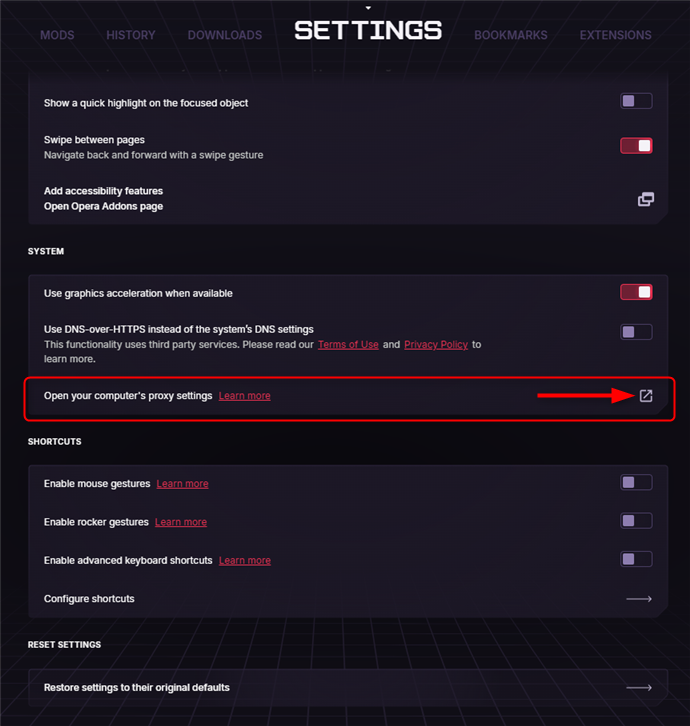
 Find and click on **Open your computer’s proxy settings**.
 Opera GX uses your system-wide proxy settings, so you'll need to configure your proxies at the OS level. Follow the detailed setup guide based on your operating system:
Follow the step-by-step guide for Windows proxy configuration [here](https://docs.oculusproxies.com/integration-guides/windows).
Follow the step-by-step guide for macOS proxy configuration [here](https://docs.oculusproxies.com/integration-guides/macos).
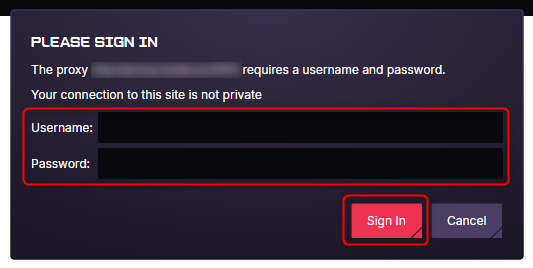
Return to the browser and when prompted, fill `Username`, `Password` and press **Sign in**.
Opera GX uses your system-wide proxy settings, so you'll need to configure your proxies at the OS level. Follow the detailed setup guide based on your operating system:
Follow the step-by-step guide for Windows proxy configuration [here](https://docs.oculusproxies.com/integration-guides/windows).
Follow the step-by-step guide for macOS proxy configuration [here](https://docs.oculusproxies.com/integration-guides/macos).
Return to the browser and when prompted, fill `Username`, `Password` and press **Sign in**.