> ## Documentation Index
> Fetch the complete documentation index at: https://docs.oculusproxies.com/llms.txt
> Use this file to discover all available pages before exploring further.
# How to Set Up Oculus Proxies With Incogniton
> Manage multiple accounts securely and anonymously by integrating Oculus Proxies with Incogniton. This guide will walk you through setting up Oculus Proxies for safe, undetectable browsing.
 ## What is Incogniton?
**Incogniton** is an advanced **anti-detect browser** that allows you to **manage multiple accounts securely** from a single platform. It creates **unique browser profiles**, each with a distinct digital fingerprint, ensuring **privacy** and preventing **detection**.
By integrating **Oculus Proxies**, you can enhance your **anonymity**, **access geo-restricted content**, and **protect your accounts from bans**.
If you’re using **Oculus** to access search engines like **Google, Bing, or Yandex** and facing connection issues, the proxy type could be the reason. **ISP Premium Proxies** ensure stable and unrestricted access, preventing blocks that standard proxies might encounter. Switching to **ISP Premium Proxies** can help maintain smooth and reliable performance.
## How to Integrate Oculus Proxies With Incogniton
Integrating **Oculus Proxies** with **Incogniton** ensures secure and undetectable browsing. Follow these steps to get started:
1\. Visit the official [Incogniton website](https://incogniton.com/).
2\. Download and install the browser for your operating system.
3\. Launch **Incogniton** and log in with your credentials.
1\. Navigate to the **Profile Management** section.
2\. Click **New Profile** to create a fresh browser session.
## What is Incogniton?
**Incogniton** is an advanced **anti-detect browser** that allows you to **manage multiple accounts securely** from a single platform. It creates **unique browser profiles**, each with a distinct digital fingerprint, ensuring **privacy** and preventing **detection**.
By integrating **Oculus Proxies**, you can enhance your **anonymity**, **access geo-restricted content**, and **protect your accounts from bans**.
If you’re using **Oculus** to access search engines like **Google, Bing, or Yandex** and facing connection issues, the proxy type could be the reason. **ISP Premium Proxies** ensure stable and unrestricted access, preventing blocks that standard proxies might encounter. Switching to **ISP Premium Proxies** can help maintain smooth and reliable performance.
## How to Integrate Oculus Proxies With Incogniton
Integrating **Oculus Proxies** with **Incogniton** ensures secure and undetectable browsing. Follow these steps to get started:
1\. Visit the official [Incogniton website](https://incogniton.com/).
2\. Download and install the browser for your operating system.
3\. Launch **Incogniton** and log in with your credentials.
1\. Navigate to the **Profile Management** section.
2\. Click **New Profile** to create a fresh browser session.
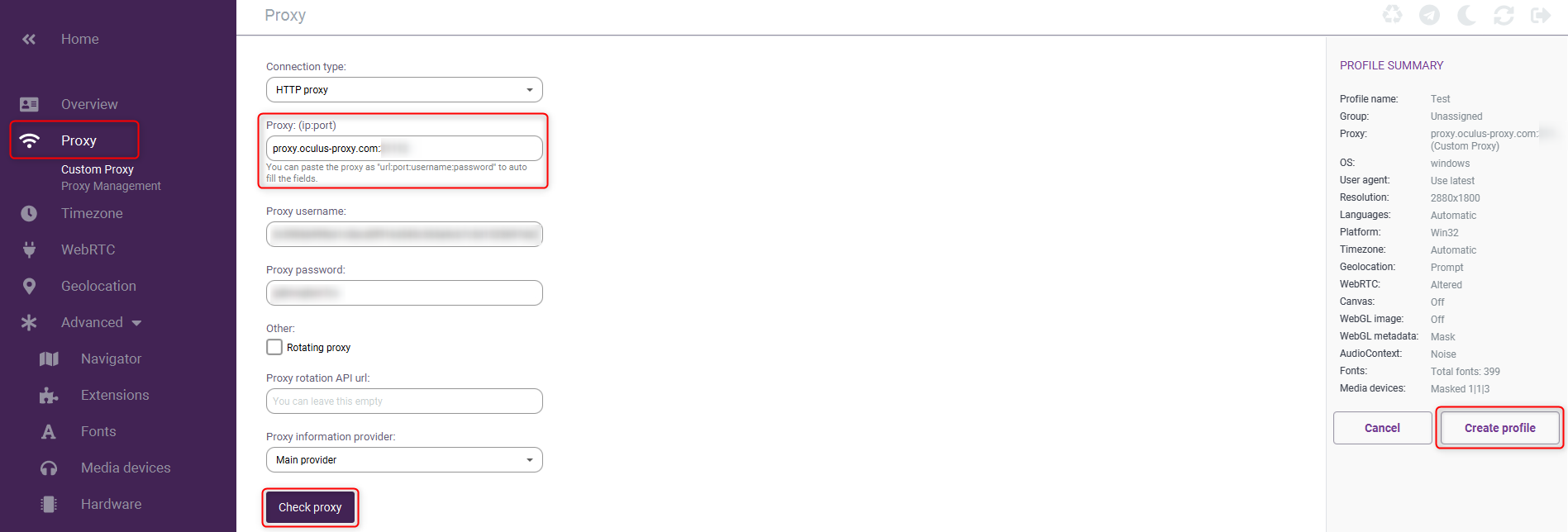
 1\. In the profile setup menu, go to the **Proxy** section.
2\. Log in to your [Oculus Dashboard](https://oculusproxies.com/dashboard) and click **Show Configured List** to view your proxy details.
3\. Copy the proxy code provided under the **Generic** tab.
4\. Go back to **Incogniton** and paste the copied proxy details into the **Proxy** field.
5\. Click **Check Proxy** to verify the connection.
6\. Once validated, click **Create Profile** to save the settings.
1\. In the profile setup menu, go to the **Proxy** section.
2\. Log in to your [Oculus Dashboard](https://oculusproxies.com/dashboard) and click **Show Configured List** to view your proxy details.
3\. Copy the proxy code provided under the **Generic** tab.
4\. Go back to **Incogniton** and paste the copied proxy details into the **Proxy** field.
5\. Click **Check Proxy** to verify the connection.
6\. Once validated, click **Create Profile** to save the settings.
 Need a region-specific proxy? Modify your username format to include the country code (e.g., `username-country-US` for a U.S.-based proxy).
1\. Return to **Profile Management**.
2\. Select the newly configured profile.
3\. Click **Start** to launch a secure, anonymous browsing session.
Need a region-specific proxy? Modify your username format to include the country code (e.g., `username-country-US` for a U.S.-based proxy).
1\. Return to **Profile Management**.
2\. Select the newly configured profile.
3\. Click **Start** to launch a secure, anonymous browsing session.
 **Success!** You’ve now integrated **Oculus Proxies** with **Incogniton**. Now you can **securely manage multiple accounts, access region-restricted content, and browse anonymously with ease!** 🚀