> ## Documentation Index
> Fetch the complete documentation index at: https://docs.oculusproxies.com/llms.txt
> Use this file to discover all available pages before exploring further.
# How to Set Up Oculus Proxies With IXBrowser
> Enhance your online privacy and streamline account management with Oculus Proxies and IXBrowser. This guide walks you through configuring Oculus Proxies for secure, anonymous, and geo-targeted browsing within IXBrowser.
 ## What is IXBrowser?
IXBrowser is a powerful anti-detect browser designed for managing multiple accounts while staying anonymous. It allows users to create isolated browsing profiles, each with a unique fingerprint, making it ideal for professionals in social media management, e-commerce, affiliate marketing, and web automation. By integrating **Oculus Proxies**, IXBrowser users can improve privacy, bypass geo-restrictions, and operate multiple accounts without detection.
If you’re using **Oculus** to access search engines like **Google, Bing, or Yandex** and facing connection issues, the proxy type could be the reason. **ISP Premium Proxies** ensure stable and unrestricted access, preventing blocks that standard proxies might encounter. Switching to **ISP Premium Proxies** can help maintain smooth and reliable performance.
## How to Integrate Oculus Proxies With IXBrowser
1\. Visit the [IXBrowser website](https://ixbrowser.com/) and download the application.
2\. Install it on your device and log in with your account credentials to access the dashboard.
1\. Go to the **Profile List** section under **Browser Profile**.
2\. Click **Create New Profile** to start setting up a browser instance.
3\. Assign a unique name to the profile in the **Profile Name** field for easy identification.
## What is IXBrowser?
IXBrowser is a powerful anti-detect browser designed for managing multiple accounts while staying anonymous. It allows users to create isolated browsing profiles, each with a unique fingerprint, making it ideal for professionals in social media management, e-commerce, affiliate marketing, and web automation. By integrating **Oculus Proxies**, IXBrowser users can improve privacy, bypass geo-restrictions, and operate multiple accounts without detection.
If you’re using **Oculus** to access search engines like **Google, Bing, or Yandex** and facing connection issues, the proxy type could be the reason. **ISP Premium Proxies** ensure stable and unrestricted access, preventing blocks that standard proxies might encounter. Switching to **ISP Premium Proxies** can help maintain smooth and reliable performance.
## How to Integrate Oculus Proxies With IXBrowser
1\. Visit the [IXBrowser website](https://ixbrowser.com/) and download the application.
2\. Install it on your device and log in with your account credentials to access the dashboard.
1\. Go to the **Profile List** section under **Browser Profile**.
2\. Click **Create New Profile** to start setting up a browser instance.
3\. Assign a unique name to the profile in the **Profile Name** field for easy identification.
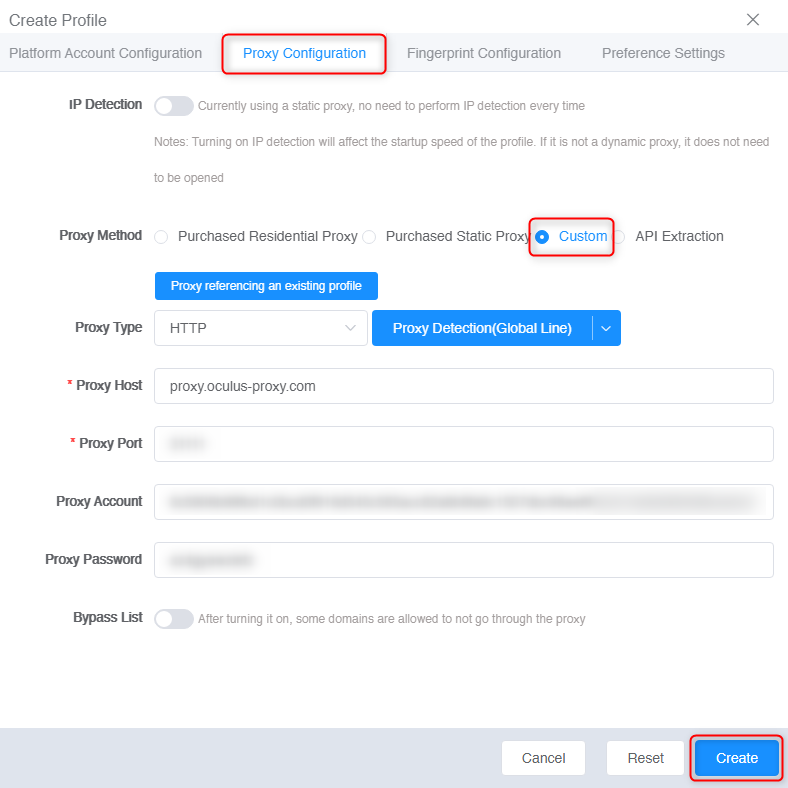
 1\. Switch to the **Proxy Configuration** tab.
2\. Enable the **Custom** option to access the proxy settings.
3\. Enter your **Oculus Proxy** credentials:
* **Proxy Type**: Choose HTTP, HTTPS, or SOCKS5 based on your proxy type.
* **Proxy Host**: Input `proxy.oculus-proxy.com`.
* **Proxy Port**: Enter the port number from your [Oculus Dashboard](https://oculusproxies.com/dashboard).
* **Proxy Username**: Use your Oculus Proxy username.
* **Proxy Password**: Input your Oculus Proxy password.
4\. Once verified, click **Create** to save your proxy configuration.
1\. Switch to the **Proxy Configuration** tab.
2\. Enable the **Custom** option to access the proxy settings.
3\. Enter your **Oculus Proxy** credentials:
* **Proxy Type**: Choose HTTP, HTTPS, or SOCKS5 based on your proxy type.
* **Proxy Host**: Input `proxy.oculus-proxy.com`.
* **Proxy Port**: Enter the port number from your [Oculus Dashboard](https://oculusproxies.com/dashboard).
* **Proxy Username**: Use your Oculus Proxy username.
* **Proxy Password**: Input your Oculus Proxy password.
4\. Once verified, click **Create** to save your proxy configuration.
 **For region-specific proxies, append the desired country code to your username (e.g., `your-username-country-US` for a US-based proxy).**
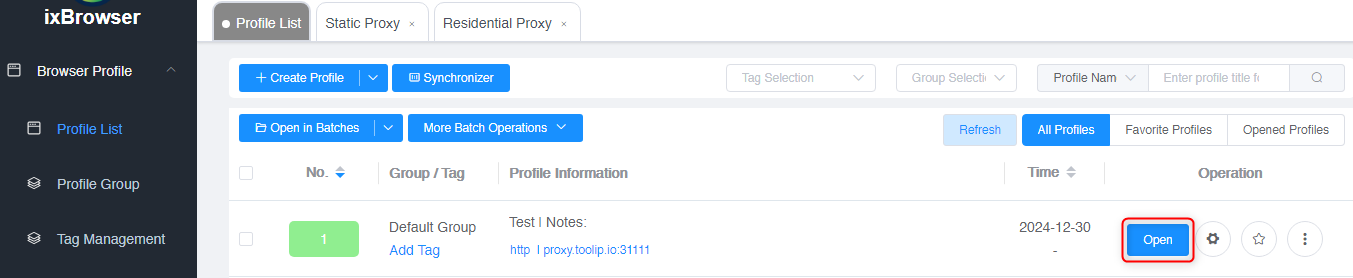
1\. Return to the **Profile List** section.
2\. Locate your newly created profile.
3\. Click **Open** to start browsing with the configured Oculus Proxy settings.
**For region-specific proxies, append the desired country code to your username (e.g., `your-username-country-US` for a US-based proxy).**
1\. Return to the **Profile List** section.
2\. Locate your newly created profile.
3\. Click **Open** to start browsing with the configured Oculus Proxy settings.
 **You’re all set!** Integrating **Oculus Proxies** with **IXBrowser** allows you to manage multiple accounts, bypass restrictions, and maintain complete anonymity. Enjoy secure and efficient browsing tailored to your needs! 🚀