> ## Documentation Index
> Fetch the complete documentation index at: https://docs.oculusproxies.com/llms.txt
> Use this file to discover all available pages before exploring further.
# How to Set Up Oculus Proxies With NikeShoeBot 👟
> So you've been exploring the sneaker game for a while and have likely heard about sneaker bots?. NikeShoeBot, in combination with Oculus Proxies, makes it easy to purchase multiple items effortlessly.
 ## What is NikeShoeBot?
**NikeShoeBot** is an advanced automation tool designed for sneaker and streetwear purchases, streamlining the add-to-cart and checkout process. When paired with **Oculus Proxies**, it enables seamless multi-item purchases. It supports Nike SNKRS, Adidas, Finish Line, JD Sports, and performs exceptionally well on Shopify and Supreme with its advanced modules and AI-powered CAPTCHA-solving.
If you're using **Oculus** to access search engines like **Google, Bing, or Yandex** and experiencing connection issues, your proxy type may need adjustment. **ISP Premium Proxies** provide stable and unrestricted access, preventing blocks that standard proxies might encounter. Switching to **ISP Premium Proxies** can improve performance.
## How to Set Up Oculus Proxies With NikeShoeBot
Head to [NikeShoeBot](https://www.nikeshoebot.com/) website and get the program.
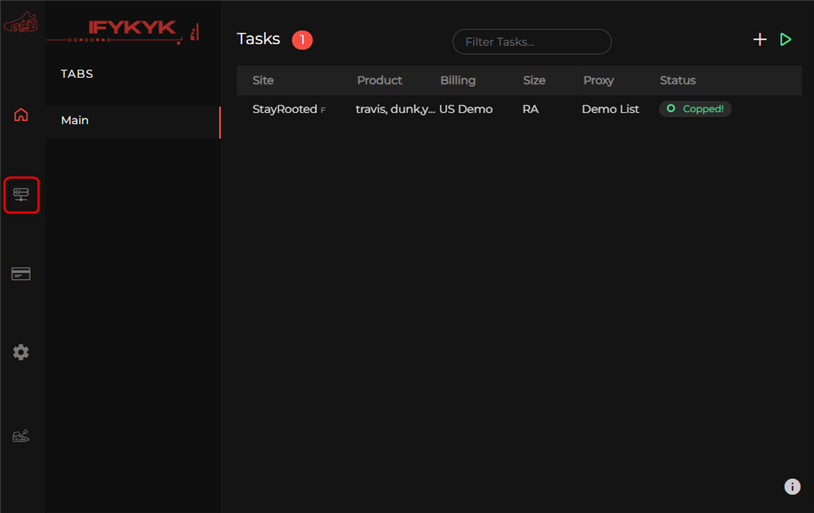
Launch the software and go to the **Proxy** Settings on the left panel.
## What is NikeShoeBot?
**NikeShoeBot** is an advanced automation tool designed for sneaker and streetwear purchases, streamlining the add-to-cart and checkout process. When paired with **Oculus Proxies**, it enables seamless multi-item purchases. It supports Nike SNKRS, Adidas, Finish Line, JD Sports, and performs exceptionally well on Shopify and Supreme with its advanced modules and AI-powered CAPTCHA-solving.
If you're using **Oculus** to access search engines like **Google, Bing, or Yandex** and experiencing connection issues, your proxy type may need adjustment. **ISP Premium Proxies** provide stable and unrestricted access, preventing blocks that standard proxies might encounter. Switching to **ISP Premium Proxies** can improve performance.
## How to Set Up Oculus Proxies With NikeShoeBot
Head to [NikeShoeBot](https://www.nikeshoebot.com/) website and get the program.
Launch the software and go to the **Proxy** Settings on the left panel.
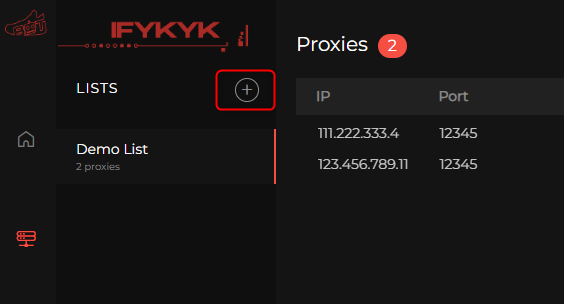
 Click the **+ button** to add a new proxy.
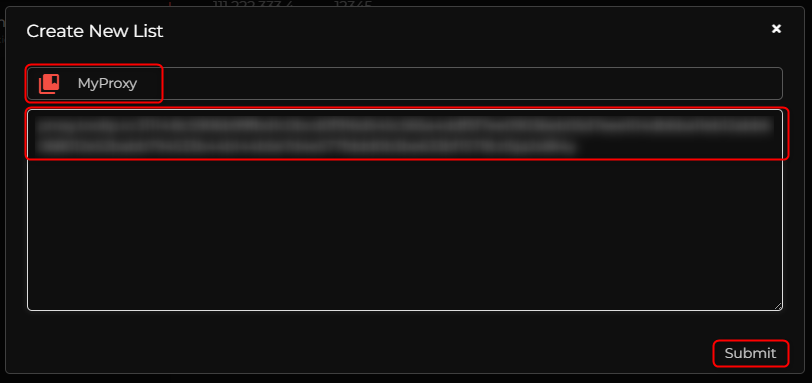
 Enter a **name** and input the proxy details in the format: `host:port:username:password`, then click **Submit**.
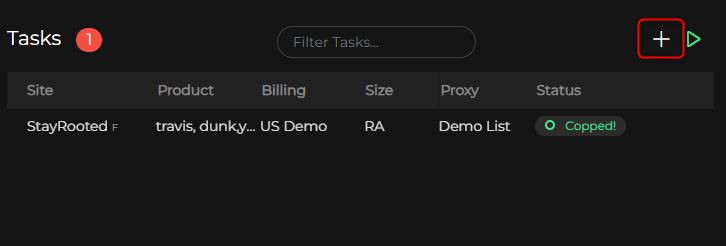
 Navigate to the **Tasks** window and click the **+ button** on the right to add a new task.
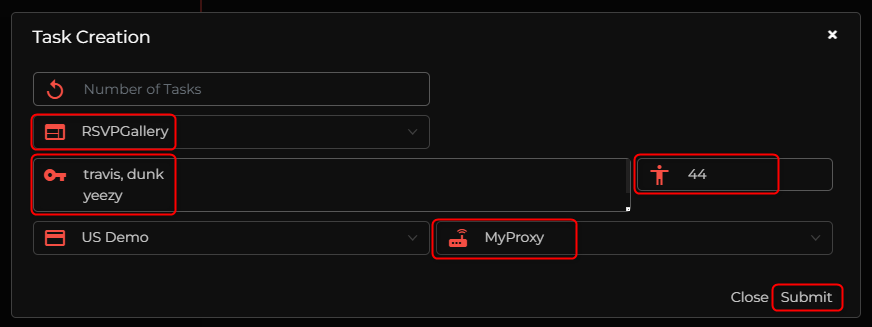
 Choose the **destination website**, specify the **shoe model** and **size**, and select the **proxy** you added. Click **Submit** to save the task.
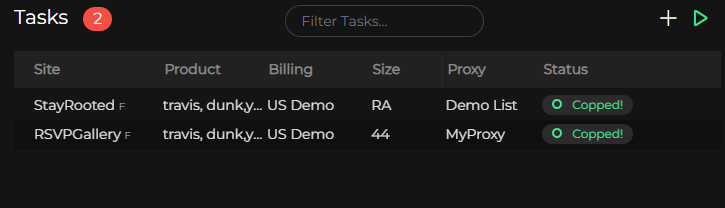
 The newly created task will appear in the main window. Click the **grey Idle tag** to activate it.
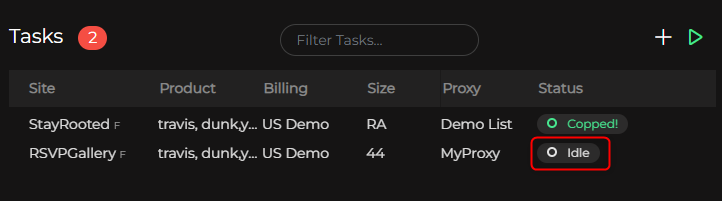 If everything is set up correctly, the **Idle tag** will turn green, indicating the task is running successfully.