> ## Documentation Index
> Fetch the complete documentation index at: https://docs.oculusproxies.com/llms.txt
> Use this file to discover all available pages before exploring further.
# How to Set Up Oculus Proxies With Postman
> Boost your API workflows! Integrating Oculus Proxies with Postman enables secure, anonymous connections while testing and debugging APIs. Follow this guide to configure Postman with Oculus Proxies for seamless and efficient API development.
 ## What is Postman?
**Postman** is a widely-used application for API development, available on Windows, macOS, and Linux. It simplifies API creation, testing, and documentation, making it an essential tool for developers and teams. Whether you're debugging requests, automating API tests, or managing environments, Postman streamlines the process and enhances collaboration.
If you're using **Oculus** to access search engines like **Google, Bing, or Yandex** and facing connection issues, the proxy type could be the reason. **ISP Premium Proxies** ensure stable and unrestricted access, preventing blocks that standard proxies might encounter. Switching to **ISP Premium Proxies** can help maintain smooth and reliable performance.
## How to Integrate Oculus Proxies With Postman
1\. Visit the [official Postman website](https://www.postman.com/downloads/).
2\. Download the version compatible with your operating system (Windows, macOS, or Linux).
3\. Install the application and launch it.
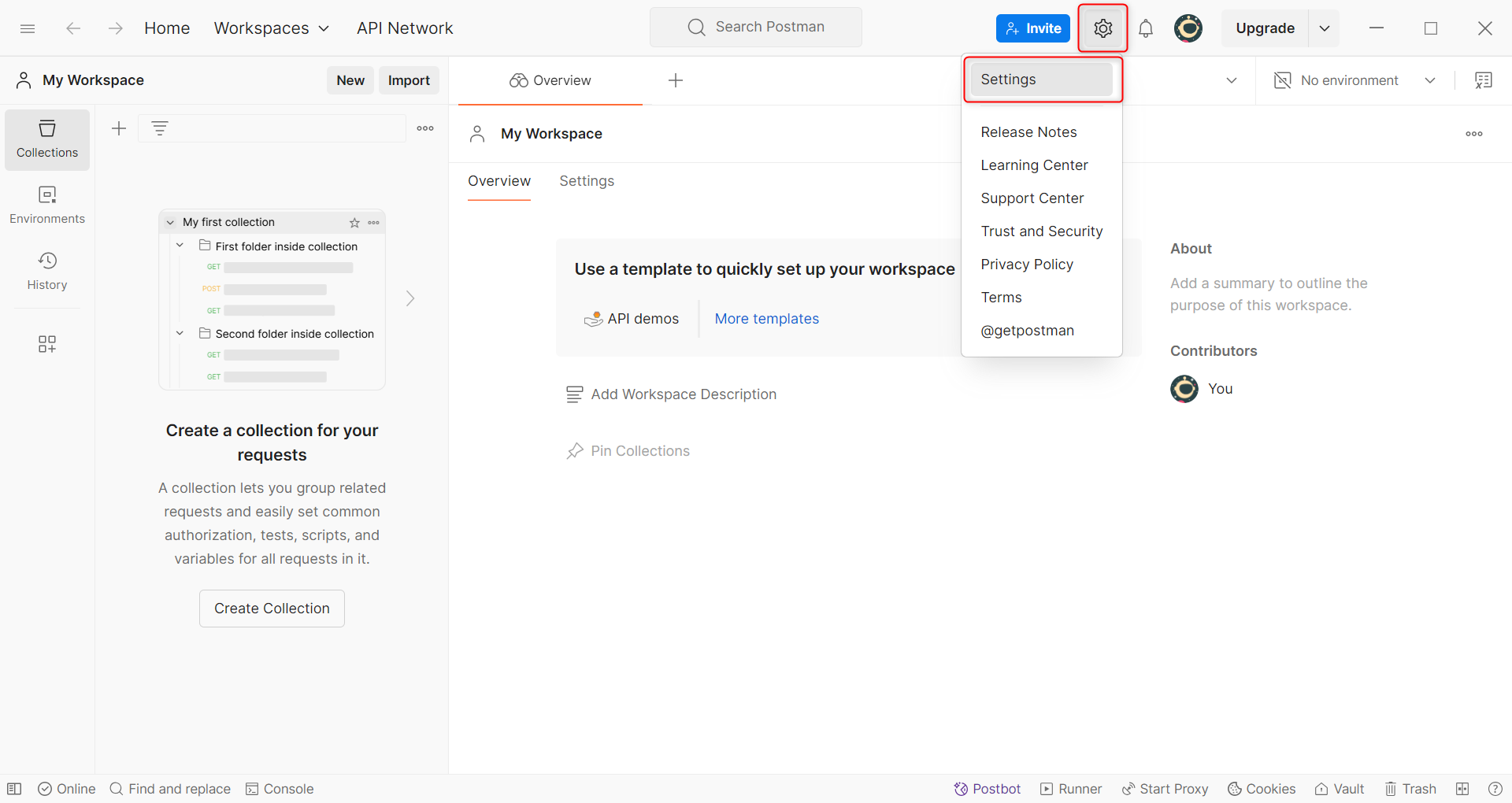
1\. Once Postman is open, locate the **Settings** menu:
* Click the **cogwheel icon** in the top-right corner of the interface.
* Select **Settings** from the dropdown menu.
## What is Postman?
**Postman** is a widely-used application for API development, available on Windows, macOS, and Linux. It simplifies API creation, testing, and documentation, making it an essential tool for developers and teams. Whether you're debugging requests, automating API tests, or managing environments, Postman streamlines the process and enhances collaboration.
If you're using **Oculus** to access search engines like **Google, Bing, or Yandex** and facing connection issues, the proxy type could be the reason. **ISP Premium Proxies** ensure stable and unrestricted access, preventing blocks that standard proxies might encounter. Switching to **ISP Premium Proxies** can help maintain smooth and reliable performance.
## How to Integrate Oculus Proxies With Postman
1\. Visit the [official Postman website](https://www.postman.com/downloads/).
2\. Download the version compatible with your operating system (Windows, macOS, or Linux).
3\. Install the application and launch it.
1\. Once Postman is open, locate the **Settings** menu:
* Click the **cogwheel icon** in the top-right corner of the interface.
* Select **Settings** from the dropdown menu.
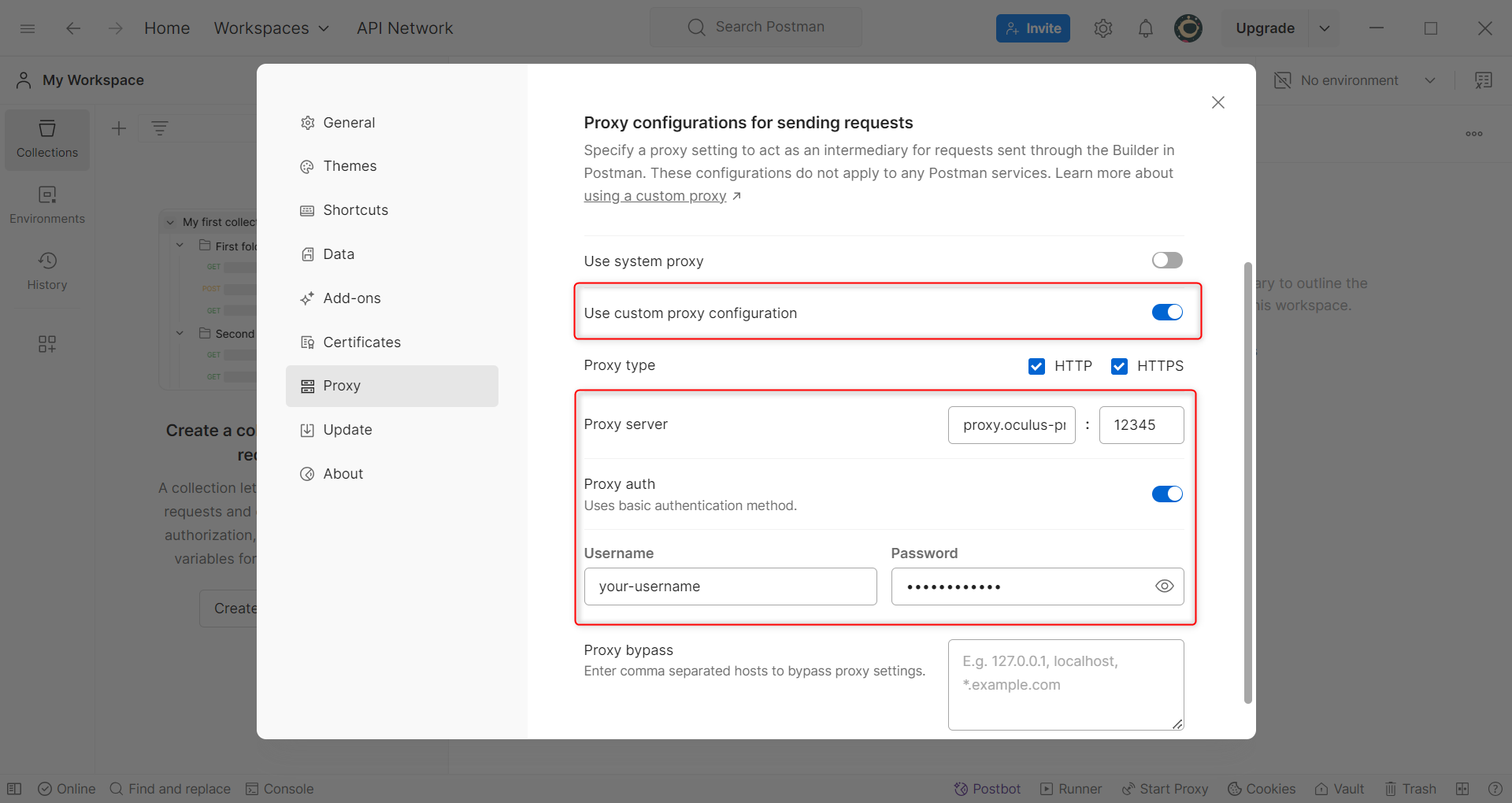
 1\. In the **Settings** menu, navigate to the **Proxy** tab.
2\. Enable **Use custom proxy configuration** to unlock proxy configuration options.
3\. Enter your Oculus Proxy details:
* **Host:** `proxy.oculus-proxy.com`
* **Port:** Retrieve the port number from your [Oculus Dashboard](https://oculusproxies.com/dashboard/page/plans).
* **Username and Password:** If authentication is required, enter your Oculus Proxy username and password.
1\. In the **Settings** menu, navigate to the **Proxy** tab.
2\. Enable **Use custom proxy configuration** to unlock proxy configuration options.
3\. Enter your Oculus Proxy details:
* **Host:** `proxy.oculus-proxy.com`
* **Port:** Retrieve the port number from your [Oculus Dashboard](https://oculusproxies.com/dashboard/page/plans).
* **Username and Password:** If authentication is required, enter your Oculus Proxy username and password.
 1\. To confirm the proxy setup, send a simple **GET** request to [https://httpbin.org/ip](https://httpbin.org/ip).
2\. Verify that the IP address returned matches your Oculus Proxy.
**You're all set!** You’ve successfully configured **Oculus Proxies** with **Postman**. All your API requests will now be routed securely through the proxy, ensuring anonymous and reliable API testing and debugging.
1\. To confirm the proxy setup, send a simple **GET** request to [https://httpbin.org/ip](https://httpbin.org/ip).
2\. Verify that the IP address returned matches your Oculus Proxy.
**You're all set!** You’ve successfully configured **Oculus Proxies** with **Postman**. All your API requests will now be routed securely through the proxy, ensuring anonymous and reliable API testing and debugging.