> ## Documentation Index
> Fetch the complete documentation index at: https://docs.oculusproxies.com/llms.txt
> Use this file to discover all available pages before exploring further.
# How to Use Oculus Proxies with Safari
> Safari provides an exceptional browsing experience on all Apple devices, combining strong privacy features with extensive customization options. When paired with Oculus Proxies, you can take your online security even further—enabling anonymous browsing, unlocking region-restricted websites, and reinforcing your digital protection with an added layer of privacy.
 If you're using **Oculus** to access search engines like **Google, Bing, or Yandex** and facing connection issues, the proxy type could be the reason. **ISP Premium Proxies** ensure stable and unrestricted access, preventing blocks that standard proxies might encounter. Switching to **ISP Premium Proxies** can help maintain smooth and reliable performance.
## How to Set Up Oculus Proxies With Safari
Open Safari and choose **Safari** from the top menu, then click on **Settings** (or use the shortcut ⌘,).
If you're using **Oculus** to access search engines like **Google, Bing, or Yandex** and facing connection issues, the proxy type could be the reason. **ISP Premium Proxies** ensure stable and unrestricted access, preventing blocks that standard proxies might encounter. Switching to **ISP Premium Proxies** can help maintain smooth and reliable performance.
## How to Set Up Oculus Proxies With Safari
Open Safari and choose **Safari** from the top menu, then click on **Settings** (or use the shortcut ⌘,).
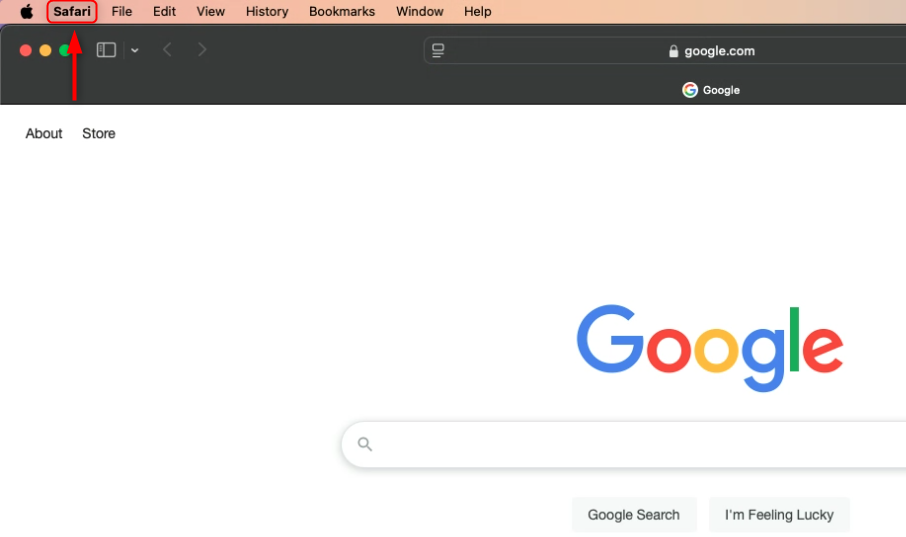
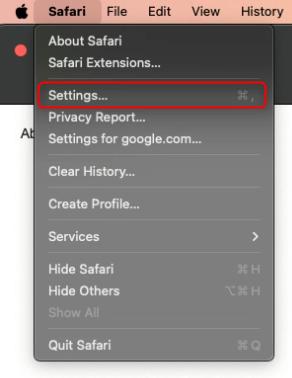 Navigate to **Advanced** tab and find the **Proxies** section, select **Change Settings**.
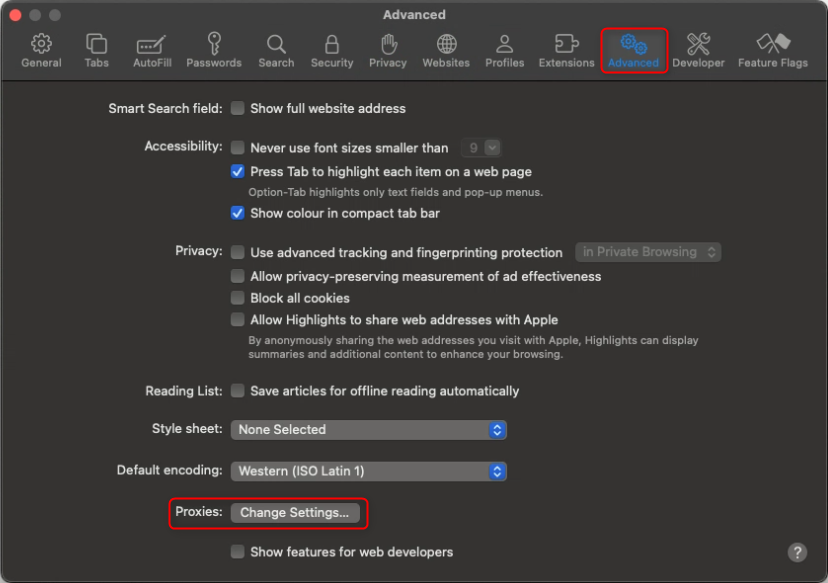 This action will take you to your Mac’s system proxy settings. For step-by-step setup instructions, follow the [OS guide](https://docs.oculusproxies.com/integration-guides/macos).