> ## Documentation Index
> Fetch the complete documentation index at: https://docs.oculusproxies.com/llms.txt
> Use this file to discover all available pages before exploring further.
# How to Set Up Oculus Proxies With Screaming Frog
> Integrate Oculus Proxies with Screaming Frog to enhance your web crawling experience. This guide walks you through configuring proxies for seamless and efficient SEO analysis.
 ## What is Screaming Frog?
**Screaming Frog SEO Spider** is a comprehensive web crawling tool tailored for SEO professionals and website managers. It enables in-depth website audits, analysis of site structure, identification of content issues, and XML sitemap generation.
By integrating Screaming Frog with **Oculus Proxies**, you can improve data retrieval, minimize blocks, and conduct geo-specific crawls effortlessly.
If you're using **Oculus** to access search engines like **Google, Bing, or Yandex** and facing connection issues, the proxy type could be the reason. **ISP Premium Proxies** ensure stable and unrestricted access, preventing blocks that standard proxies might encounter. Switching to **ISP Premium Proxies** can help maintain smooth and reliable performance.
## How to Integrate Oculus Proxies With Screaming Frog
1\. Visit the official [Screaming Frog website](https://www.screamingfrog.co.uk/seo-spider/).
2\. Download the appropriate version for your operating system (Windows, macOS, or Linux).
3\. Install the application and launch it after installation.
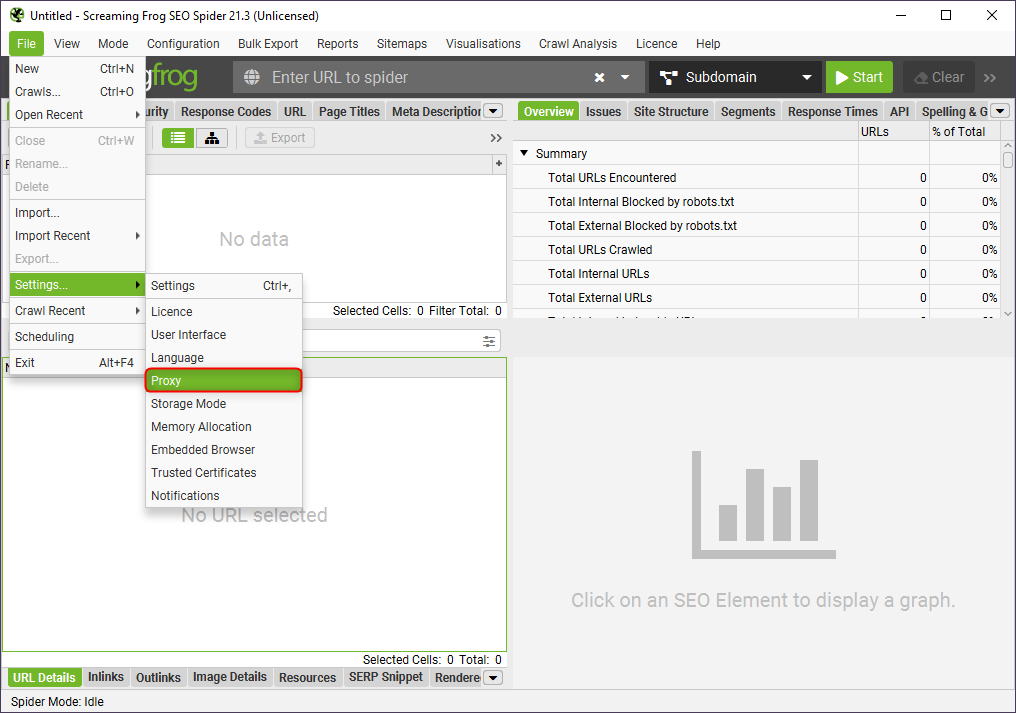
1\. Open Screaming Frog and go to the **File** menu.
2\. Select **Settings> Proxy** to open the proxy settings window.
## What is Screaming Frog?
**Screaming Frog SEO Spider** is a comprehensive web crawling tool tailored for SEO professionals and website managers. It enables in-depth website audits, analysis of site structure, identification of content issues, and XML sitemap generation.
By integrating Screaming Frog with **Oculus Proxies**, you can improve data retrieval, minimize blocks, and conduct geo-specific crawls effortlessly.
If you're using **Oculus** to access search engines like **Google, Bing, or Yandex** and facing connection issues, the proxy type could be the reason. **ISP Premium Proxies** ensure stable and unrestricted access, preventing blocks that standard proxies might encounter. Switching to **ISP Premium Proxies** can help maintain smooth and reliable performance.
## How to Integrate Oculus Proxies With Screaming Frog
1\. Visit the official [Screaming Frog website](https://www.screamingfrog.co.uk/seo-spider/).
2\. Download the appropriate version for your operating system (Windows, macOS, or Linux).
3\. Install the application and launch it after installation.
1\. Open Screaming Frog and go to the **File** menu.
2\. Select **Settings> Proxy** to open the proxy settings window.
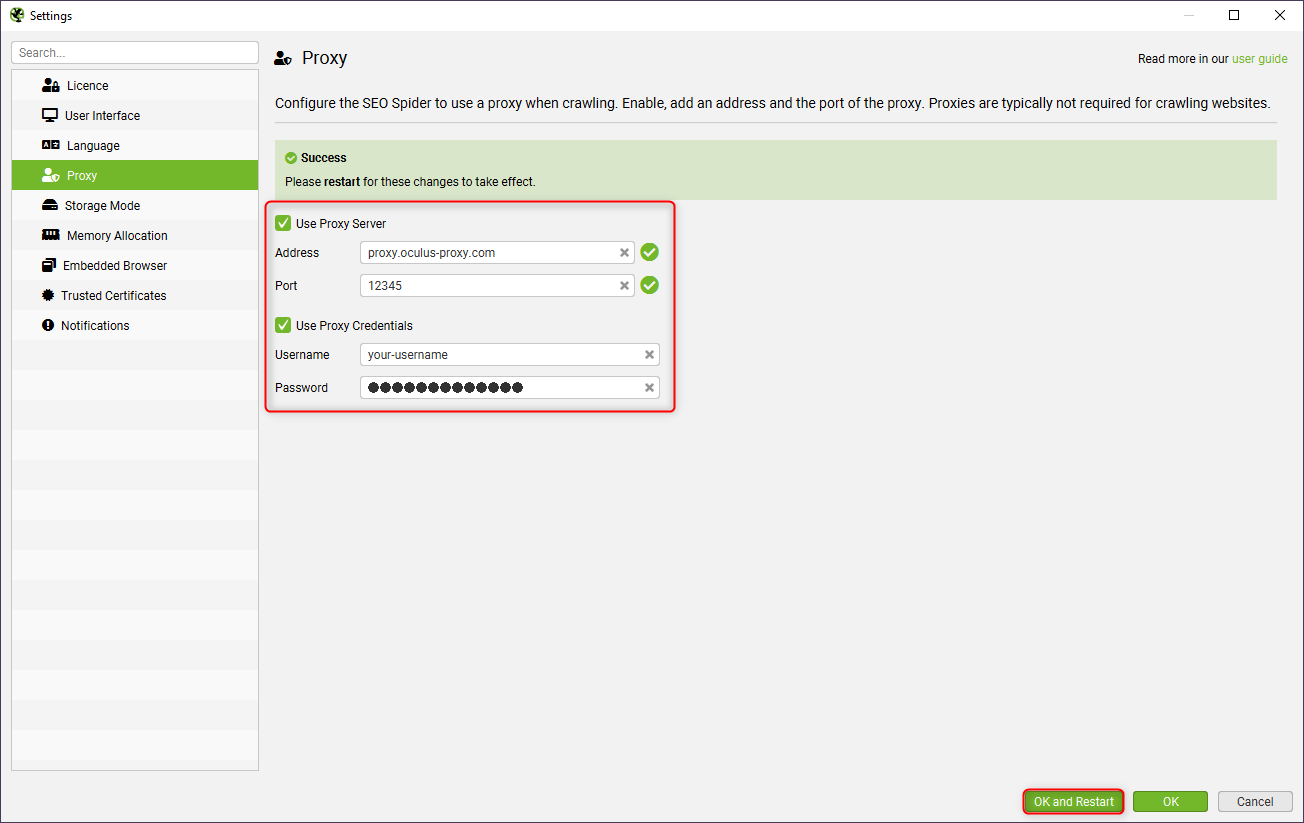
 1\. Enable the **Use Proxy Server** checkbox.
2\. If authentication is required, check **Use Proxy Credentials** to unlock additional fields.
3\. Enter your Oculus Proxy details:
* **Address**: Input `proxy.oculus-proxy.com`.
* **Port**: Use the port number provided in your [Oculus Dashboard](https://oculusproxies.com/dashboard/page/plans).
* **Username**: Enter your Oculus proxy username.
* **Password**: Enter your Oculus proxy password.
4\. Click **OK and Restart** to save your proxy configuration and apply the changes.
1\. Enable the **Use Proxy Server** checkbox.
2\. If authentication is required, check **Use Proxy Credentials** to unlock additional fields.
3\. Enter your Oculus Proxy details:
* **Address**: Input `proxy.oculus-proxy.com`.
* **Port**: Use the port number provided in your [Oculus Dashboard](https://oculusproxies.com/dashboard/page/plans).
* **Username**: Enter your Oculus proxy username.
* **Password**: Enter your Oculus proxy password.
4\. Click **OK and Restart** to save your proxy configuration and apply the changes.
 For country-specific proxies, you can enter a format like `your-username-country-US` to receive a US exit node.
**Congratulations!** You’ve successfully configured **Oculus Proxies** with **Screaming Frog**. Now you can crawl websites securely, bypass restrictions, and perform geo-targeted SEO analysis with confidence.
For country-specific proxies, you can enter a format like `your-username-country-US` to receive a US exit node.
**Congratulations!** You’ve successfully configured **Oculus Proxies** with **Screaming Frog**. Now you can crawl websites securely, bypass restrictions, and perform geo-targeted SEO analysis with confidence.