> ## Documentation Index
> Fetch the complete documentation index at: https://docs.oculusproxies.com/llms.txt
> Use this file to discover all available pages before exploring further.
# How to Set Up Oculus Proxies With SocksDroid
> Enhance your mobile browsing security with Oculus Proxies in SocksDroid. By integrating Oculus, you can configure and manage your own proxy-based VPN setup for secure and private internet access. This guide will walk you through setting up SocksDroid with Oculus Proxies to optimize your online privacy and browsing experience.
 ## What is SocksDroid?
**SocksDroid** is a powerful proxy-based VPN client for Android that leverages the system’s built-in VPN functionality. Unlike traditional VPN services, it does not provide its own servers but allows users to configure and connect to their preferred proxy servers. By using **Oculus Proxies**, you can further optimize your proxy setup, ensuring a seamless and secure browsing experience.
If you're using **Oculus** to access search engines like **Google, Bing, or Yandex** and facing connection issues, the proxy type could be the reason. **ISP Premium Proxies** ensure stable and unrestricted access, preventing blocks that standard proxies might encounter. Switching to **ISP Premium Proxies** can help maintain smooth and reliable performance.
## How to Integrate Oculus Proxies With SocksDroid
[Download SocksDroid](https://socksdroid.en.softonic.com/android/download) and install it on your Android device.
1\. Open the **SocksDroid** app.
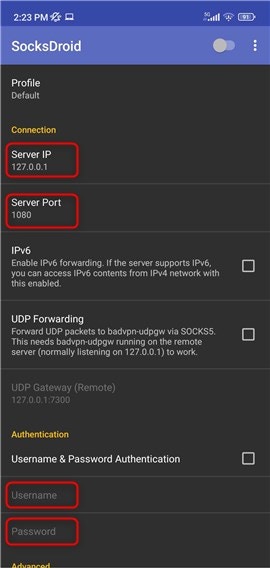
2\. Insert the following details:
* **Server IP (Host)**: `proxy.oculus-proxy.com`
* **Server Port**: `31115`
* **Username**: Your **Oculus Proxy username**
* **Password**: Your **Oculus Proxy password**
3\. Double-check the entered credentials before proceeding.
SocksDroid supports **only SOCKS5 proxies**, therefore, ensure the Port is set to `31115`.
## What is SocksDroid?
**SocksDroid** is a powerful proxy-based VPN client for Android that leverages the system’s built-in VPN functionality. Unlike traditional VPN services, it does not provide its own servers but allows users to configure and connect to their preferred proxy servers. By using **Oculus Proxies**, you can further optimize your proxy setup, ensuring a seamless and secure browsing experience.
If you're using **Oculus** to access search engines like **Google, Bing, or Yandex** and facing connection issues, the proxy type could be the reason. **ISP Premium Proxies** ensure stable and unrestricted access, preventing blocks that standard proxies might encounter. Switching to **ISP Premium Proxies** can help maintain smooth and reliable performance.
## How to Integrate Oculus Proxies With SocksDroid
[Download SocksDroid](https://socksdroid.en.softonic.com/android/download) and install it on your Android device.
1\. Open the **SocksDroid** app.
2\. Insert the following details:
* **Server IP (Host)**: `proxy.oculus-proxy.com`
* **Server Port**: `31115`
* **Username**: Your **Oculus Proxy username**
* **Password**: Your **Oculus Proxy password**
3\. Double-check the entered credentials before proceeding.
SocksDroid supports **only SOCKS5 proxies**, therefore, ensure the Port is set to `31115`.
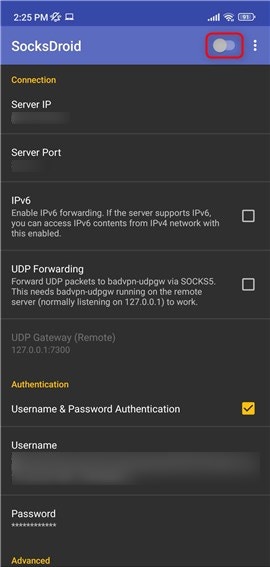
 1\. Turn on the proxy by toggling the **switch** at the top of the screen.
2\. The connection will initialize.
1\. Turn on the proxy by toggling the **switch** at the top of the screen.
2\. The connection will initialize.
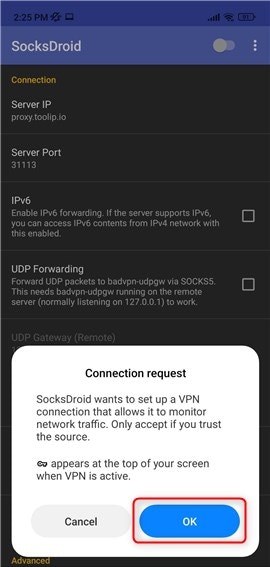
 1\. If a **consent screen** appears, press **OK** to allow the connection.
2\. This grants SocksDroid permission to establish a secure proxy-based VPN session.
1\. If a **consent screen** appears, press **OK** to allow the connection.
2\. This grants SocksDroid permission to establish a secure proxy-based VPN session.
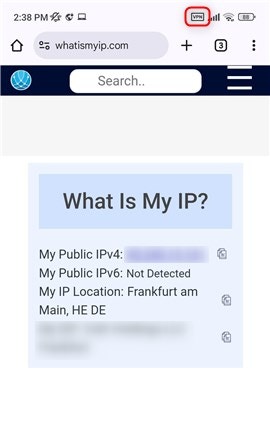
 1\. Once connected successfully, a **VPN icon** will appear in your device’s top bar.
2\. This indicates that all your traffic is now routed through **Oculus Proxies**, ensuring a secure and anonymous browsing experience.
1\. Once connected successfully, a **VPN icon** will appear in your device’s top bar.
2\. This indicates that all your traffic is now routed through **Oculus Proxies**, ensuring a secure and anonymous browsing experience.
 **You're all set!** You’ve successfully integrated **Oculus Proxies** with **SocksDroid**. Now you can browse securely, maintain privacy, and access geo-restricted content from your Android device.