> ## Documentation Index
> Fetch the complete documentation index at: https://docs.oculusproxies.com/llms.txt
> Use this file to discover all available pages before exploring further.
# Setting Up Oculus Proxies with Tor Browser
> Magnify your privacy and secure your online activities with Oculus Proxies in Tor Browser. This guide will walk you through configuring a stable and anonymous proxy connection for seamless browsing.
 ## Setting Up Oculus Proxies With Tor Browser
**Tor Browser** is a security-focused web browser designed for users who value anonymity and privacy. It routes internet traffic through the Tor network, encrypting data and masking IP addresses to prevent tracking and surveillance. Frequently used by journalists, activists, and privacy-conscious individuals, Tor Browser helps bypass censorship, access restricted content, and browse the web anonymously. By integrating **Oculus Proxies**, you can further enhance your privacy, establish secure proxy connections, and maintain a seamless browsing experience.
If you're using **Oculus** to access search engines like **Google, Bing, or Yandex** and facing connection issues, the proxy type could be the reason. **ISP Premium Proxies** ensure stable and unrestricted access, preventing blocks that standard proxies might encounter. Switching to **ISP Premium Proxies** can help maintain smooth and reliable performance.
## Guide to Setting Up Oculus Proxies with Tor Browser
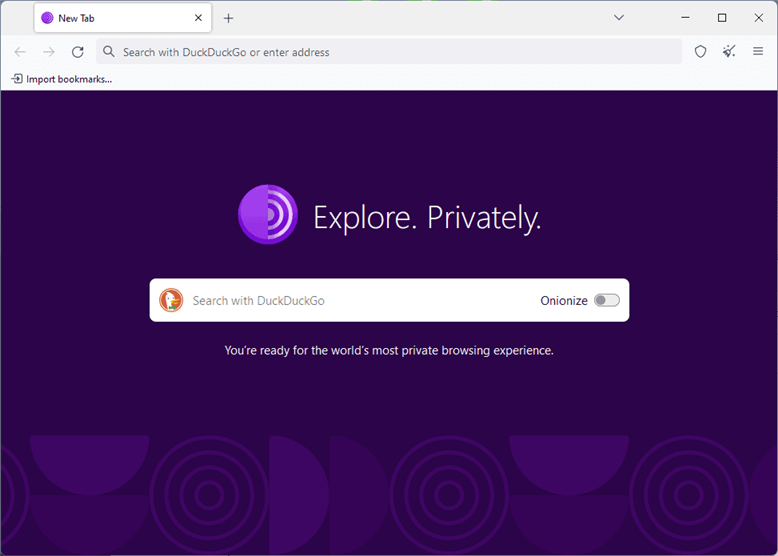
Get the latest version of Tor Browser by [downloading it here](https://www.torproject.org/download/) and following the installation process.
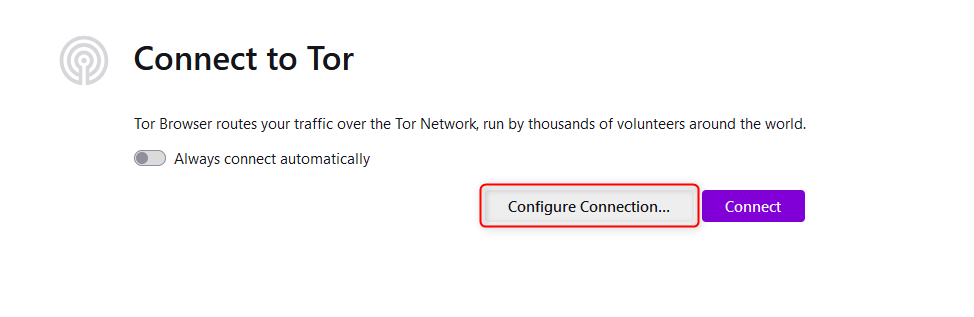
Launch Tor Browser and select **Configure Connection**.
## Setting Up Oculus Proxies With Tor Browser
**Tor Browser** is a security-focused web browser designed for users who value anonymity and privacy. It routes internet traffic through the Tor network, encrypting data and masking IP addresses to prevent tracking and surveillance. Frequently used by journalists, activists, and privacy-conscious individuals, Tor Browser helps bypass censorship, access restricted content, and browse the web anonymously. By integrating **Oculus Proxies**, you can further enhance your privacy, establish secure proxy connections, and maintain a seamless browsing experience.
If you're using **Oculus** to access search engines like **Google, Bing, or Yandex** and facing connection issues, the proxy type could be the reason. **ISP Premium Proxies** ensure stable and unrestricted access, preventing blocks that standard proxies might encounter. Switching to **ISP Premium Proxies** can help maintain smooth and reliable performance.
## Guide to Setting Up Oculus Proxies with Tor Browser
Get the latest version of Tor Browser by [downloading it here](https://www.torproject.org/download/) and following the installation process.
Launch Tor Browser and select **Configure Connection**.
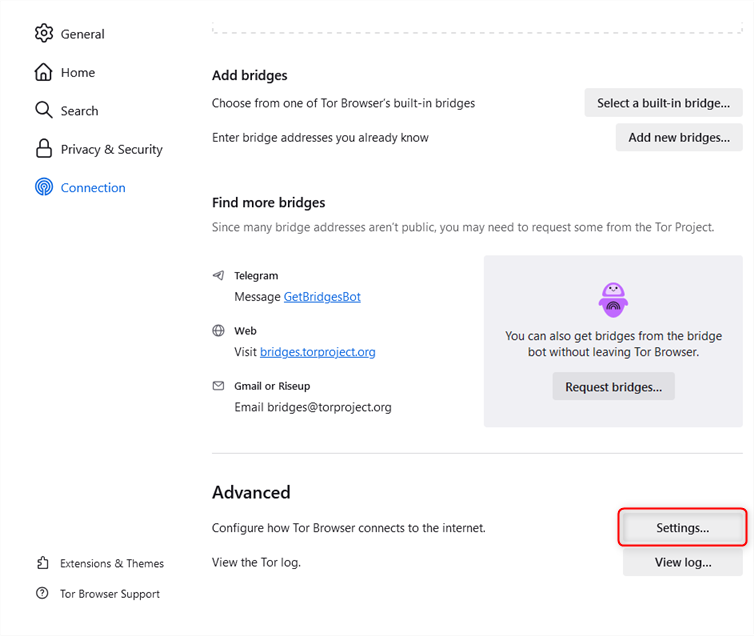
 Scroll down to the **Advanced** section and open **Settings**.
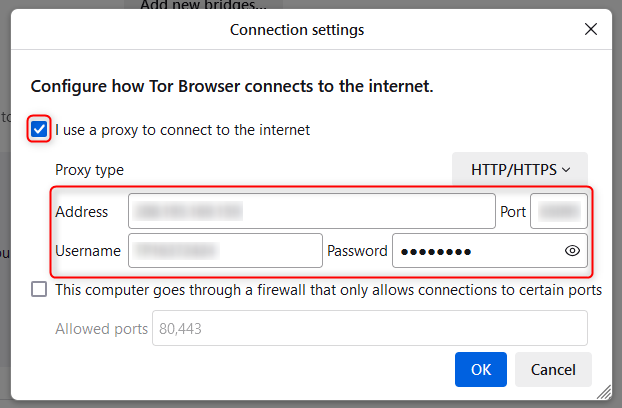
 Enable **I use a proxy to connect to the internet**, then input the required:
`Address`
`Port`
`Username`
`Password`
Click **OK** to save.
Enable **I use a proxy to connect to the internet**, then input the required:
`Address`
`Port`
`Username`
`Password`
Click **OK** to save.
 Close the settings menu and click **Connect** to initiate the connection.
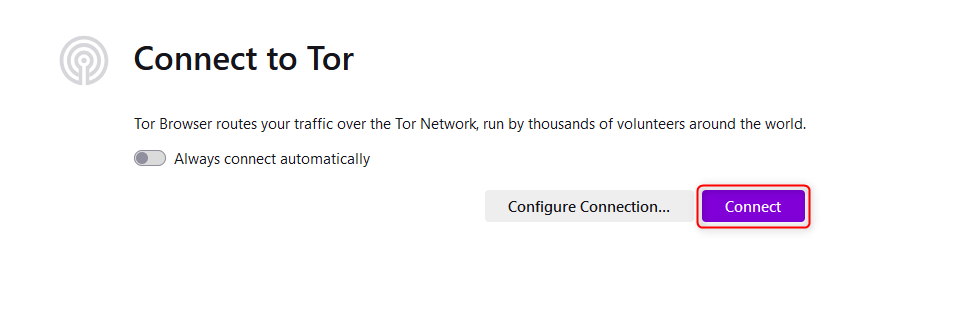 The connection process may take a minute or two. Please be patient while Tor establishes a secure connection.
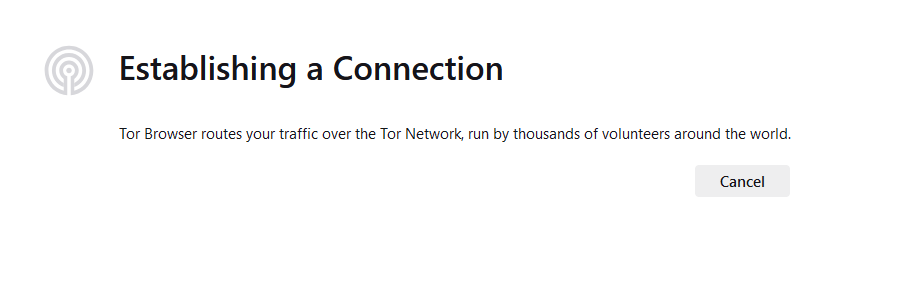 Once connected, enjoy private and anonymous browsing with **Tor and Oculus Proxies**.