> ## Documentation Index
> Fetch the complete documentation index at: https://docs.oculusproxies.com/llms.txt
> Use this file to discover all available pages before exploring further.
# How to Set Up Oculus Proxies With Vision Browser
> This guide will walk you through configuring Oculus Proxies to protect your online activity, prevent tracking, and access restricted content, all while utilizing Vision Browser’s advanced security features and customizable settings.
 ## What is Vision Browser?
**Vision** is a privacy-focused web browser that ensures security, anonymity, and ad-free browsing while preventing tracking. With built-in encryption, advanced blocking, and a VPN, it protects against data leaks and cyber threats. It supports extensions, customizable privacy settings, and proxy integration. Using **Oculus Proxies**, you can hide your IP, bypass geo-restrictions, and enhance security without sacrificing speed.
If you're using **Oculus** to access search engines like **Google, Bing, or Yandex** and facing connection issues, the proxy type could be the reason. **ISP Premium Proxies** ensure stable and unrestricted access, preventing blocks that standard proxies might encounter. Switching to **ISP Premium Proxies** can help maintain smooth and reliable performance.
## How to Integrate Oculus Proxies With Vision Browser
Get [Vision Browser](https://browser.vision/en) and install it on your device.
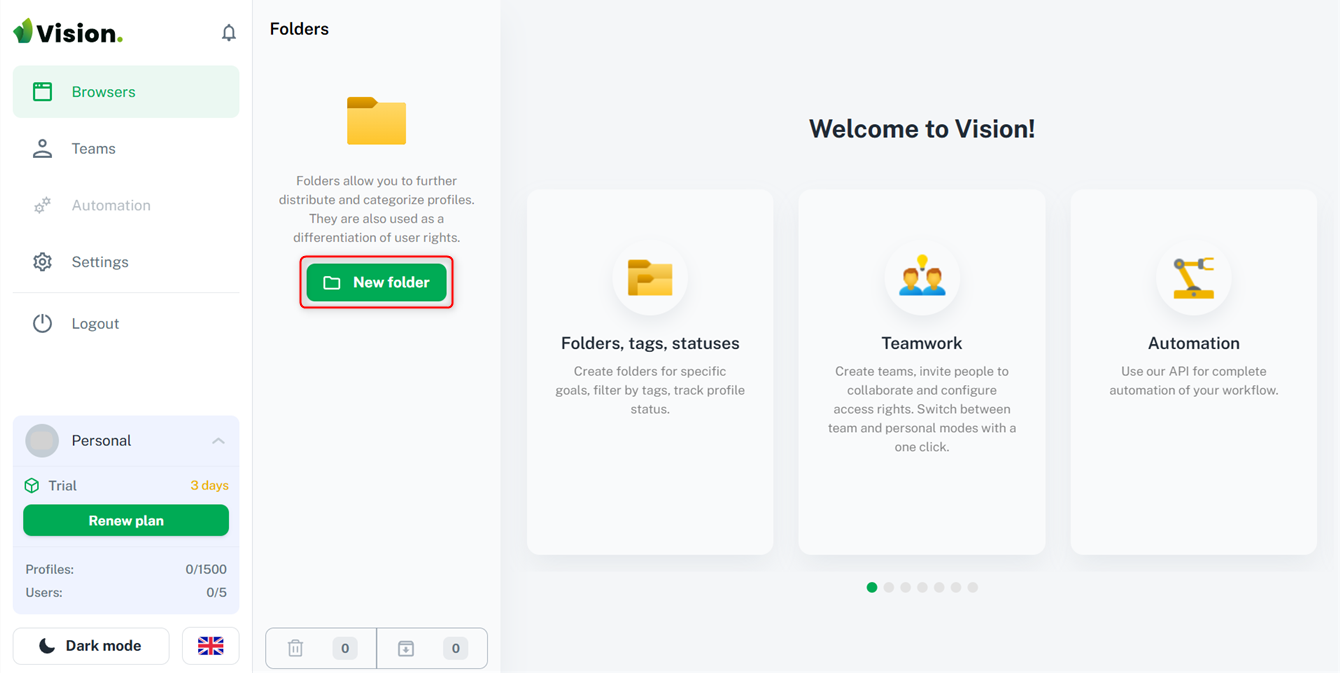
Launch the browser and click **New Folder**.
## What is Vision Browser?
**Vision** is a privacy-focused web browser that ensures security, anonymity, and ad-free browsing while preventing tracking. With built-in encryption, advanced blocking, and a VPN, it protects against data leaks and cyber threats. It supports extensions, customizable privacy settings, and proxy integration. Using **Oculus Proxies**, you can hide your IP, bypass geo-restrictions, and enhance security without sacrificing speed.
If you're using **Oculus** to access search engines like **Google, Bing, or Yandex** and facing connection issues, the proxy type could be the reason. **ISP Premium Proxies** ensure stable and unrestricted access, preventing blocks that standard proxies might encounter. Switching to **ISP Premium Proxies** can help maintain smooth and reliable performance.
## How to Integrate Oculus Proxies With Vision Browser
Get [Vision Browser](https://browser.vision/en) and install it on your device.
Launch the browser and click **New Folder**.
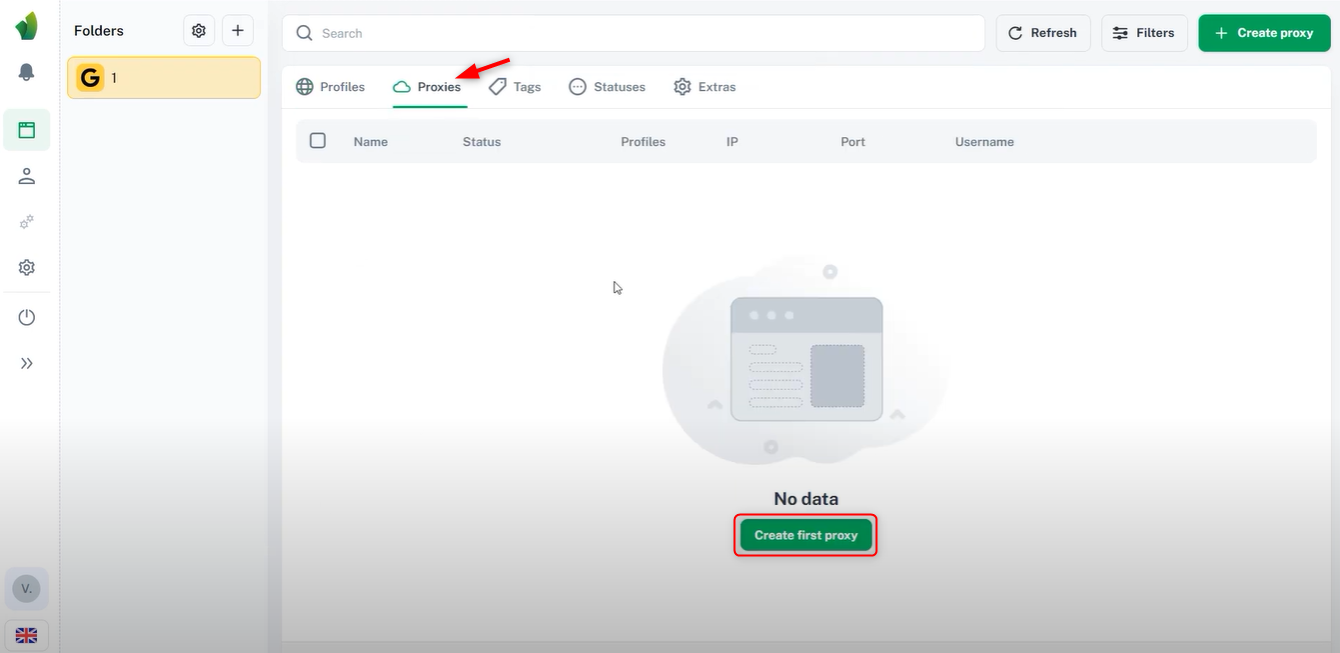
 Navigate to the **Proxies tab** and click **Create First Proxy**.
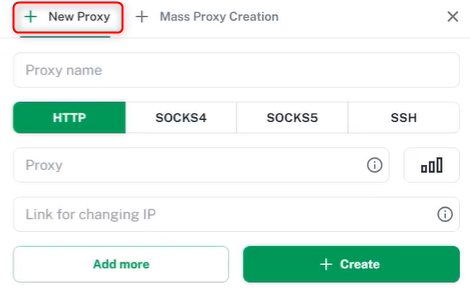
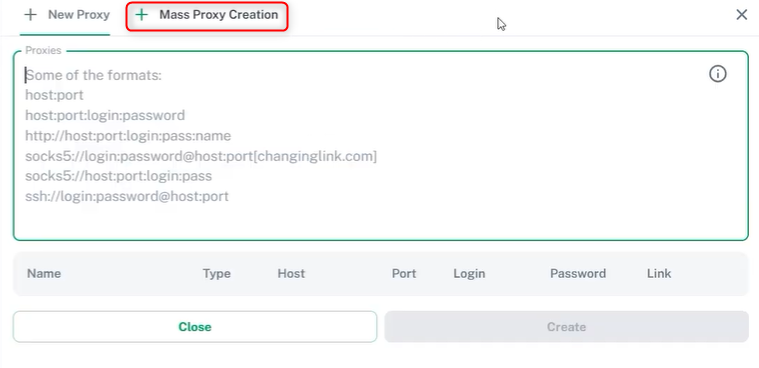
 * Choose to create a **single proxy** or **multiple proxies** at once.
* Assign a **name**, select a **protocol**, and enter the proxy details in this format: `Host:IP:Username:Password`.
* Click **+Create** to save the proxy.
* Choose to create a **single proxy** or **multiple proxies** at once.
* Assign a **name**, select a **protocol**, and enter the proxy details in this format: `Host:IP:Username:Password`.
* Click **+Create** to save the proxy.
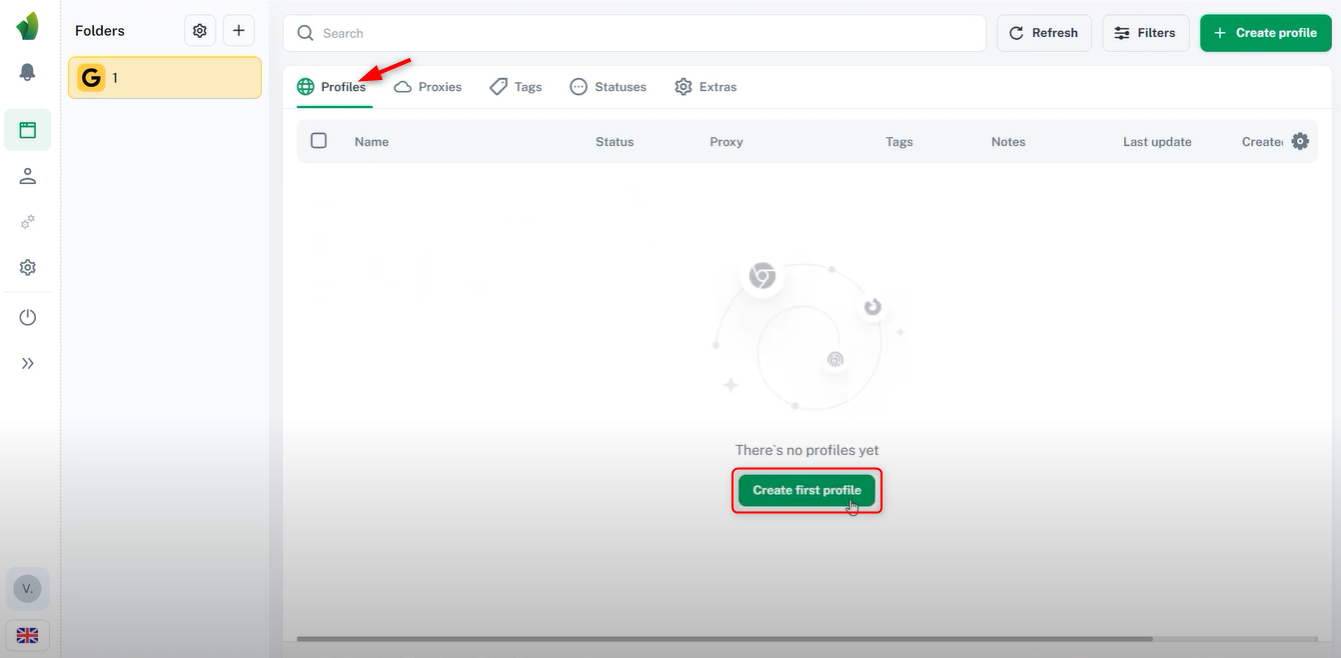
 Go to the **Profiles tab** and click **Create First Profile**.
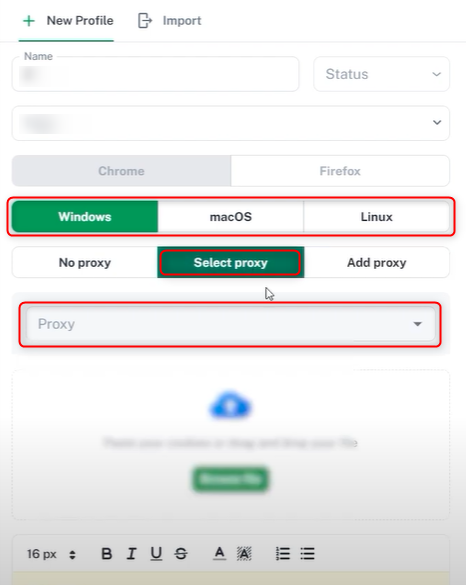
 Enter a **profile name**, select an **OS**, and choose the newly created **proxy** from the list. Now your Vision Browser is set up with a proxy, ready for secure and private browsing!