> ## Documentation Index
> Fetch the complete documentation index at: https://docs.oculusproxies.com/llms.txt
> Use this file to discover all available pages before exploring further.
# How to Set Up Oculus Proxies With Wade Browser
> Improve your online privacy and streamline multi-account management by integrating Oculus Proxies with WADE Browser. This guide will walk you through configuring proxies in WADE for secure and efficient browsing.
 ## What is Wade Browser?
**WADE** is a powerful anti-detect browser designed for managing multiple accounts, web scraping, and online anonymity. It prevents fingerprint tracking by generating a unique digital fingerprint for each browser profile, ensuring that every account appears as a separate user to digital platforms. By combining **WADE Browser with Oculus Proxies**, you can maximize anonymity, prevent tracking, and optimize automation workflows for seamless online operations.
If you're using **Oculus** to access search engines like **Google, Bing, or Yandex** and facing connection issues, the proxy type could be the reason. **ISP Premium Proxies** ensure stable and unrestricted access, preventing blocks that standard proxies might encounter. Switching to **ISP Premium Proxies** can help maintain smooth and reliable performance.
## How to Integrate Oculus Proxies With Wade Browser
[Get WADE Browser](https://wade.is/) and complete the installation process.
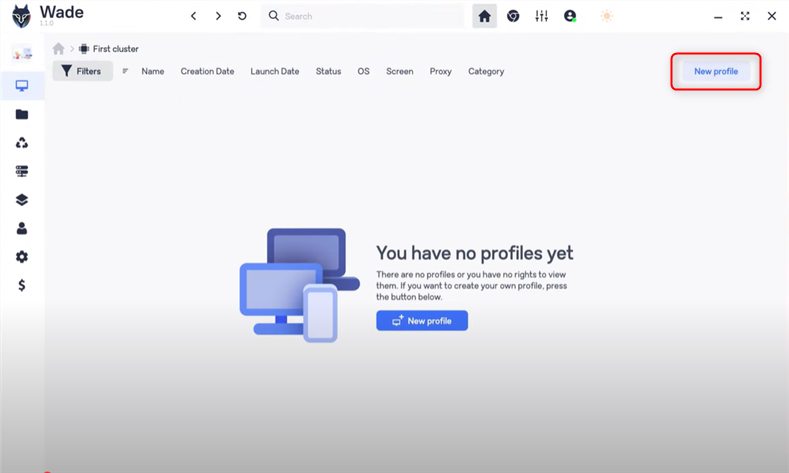
Open WADE and select **New Profile**.
## What is Wade Browser?
**WADE** is a powerful anti-detect browser designed for managing multiple accounts, web scraping, and online anonymity. It prevents fingerprint tracking by generating a unique digital fingerprint for each browser profile, ensuring that every account appears as a separate user to digital platforms. By combining **WADE Browser with Oculus Proxies**, you can maximize anonymity, prevent tracking, and optimize automation workflows for seamless online operations.
If you're using **Oculus** to access search engines like **Google, Bing, or Yandex** and facing connection issues, the proxy type could be the reason. **ISP Premium Proxies** ensure stable and unrestricted access, preventing blocks that standard proxies might encounter. Switching to **ISP Premium Proxies** can help maintain smooth and reliable performance.
## How to Integrate Oculus Proxies With Wade Browser
[Get WADE Browser](https://wade.is/) and complete the installation process.
Open WADE and select **New Profile**.
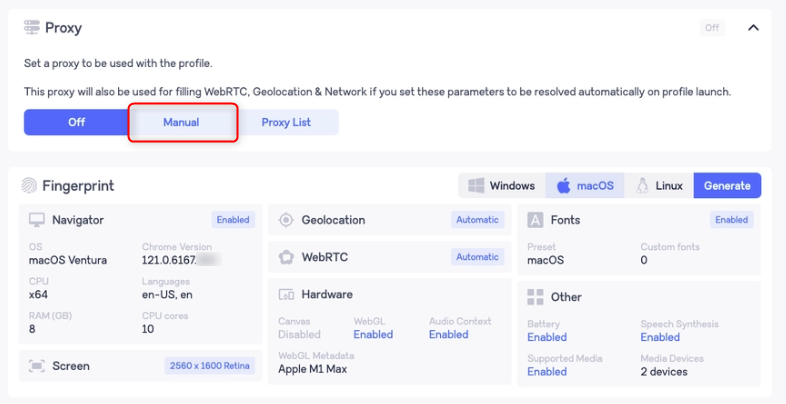
 In the Proxy section on the right, choose **Manual**.
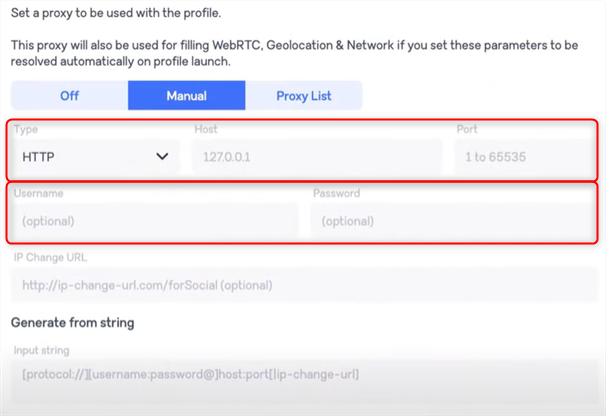
 Fill in the required fields: `Type`, `Host`, `Port`, `Username`, and `Password`.
 Click **Scan Proxy** to verify the connection.
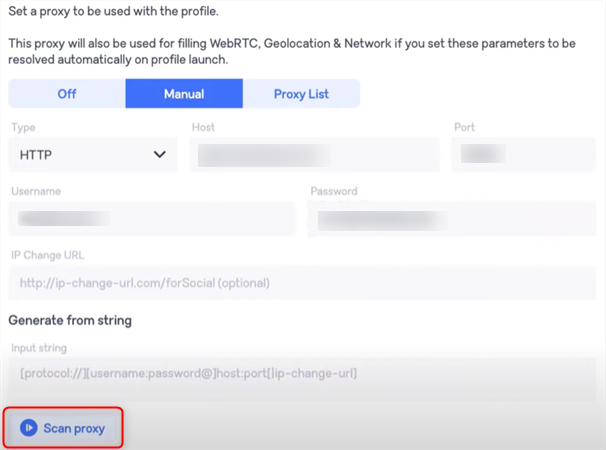 If the connection is successful, the proxy details will appear next to the **Scan Proxy** button.
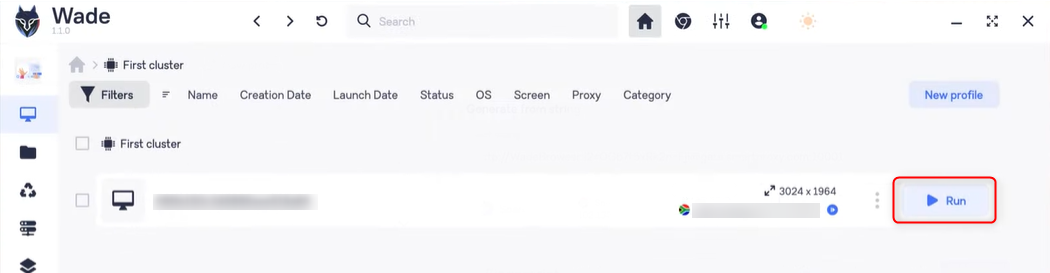
 Return to the main screen and click the **Run** button on the right to launch the profile.