> ## Documentation Index
> Fetch the complete documentation index at: https://docs.oculusproxies.com/llms.txt
> Use this file to discover all available pages before exploring further.

# Bandwidth Auto-Renew

> Take full control of your bandwidth auto-renewal settings. Learn how to enable or disable it easily for a seamless experience.

<Tabs>
  <Tab title="Enable Bandwidth Auto-Renewal">
    <Steps>
      <Step title="Select a Proxy">
        Open your [dashboard](https://oculusproxies.com/dashboard/page/plans) and click the **three dots** next to the proxy for which you want to enable auto-renewal.

        <Frame>
          <img src="https://mintcdn.com/oculus/82pTXSmAm_I05KFL/pricing-billing/image/3dots-select.png?fit=max&auto=format&n=82pTXSmAm_I05KFL&q=85&s=59a34e2afa485c907e05cddb8bb36e58" width="1212" height="154" data-path="pricing-billing/image/3dots-select.png" />
        </Frame>
      </Step>

      <Step title="Activate Auto-Renewal">
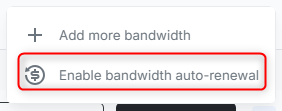
        Select **Enable Bandwidth Auto-Renewal** from the options.
        <Frame style={{width:"50%", height:"auto"}}>
          <img src="https://mintcdn.com/oculus/B1NT9yKysKU6-W1k/pricing-billing/image/enable-bandwidth-auto.png?fit=max&auto=format&n=B1NT9yKysKU6-W1k&q=85&s=65718cda6f51e2a1d947229bd198fb8c" alt="" width="282" height="111" data-path="pricing-billing/image/enable-bandwidth-auto.png" />
        </Frame>
      </Step>

      <Step title="Set Bandwidth Limit">
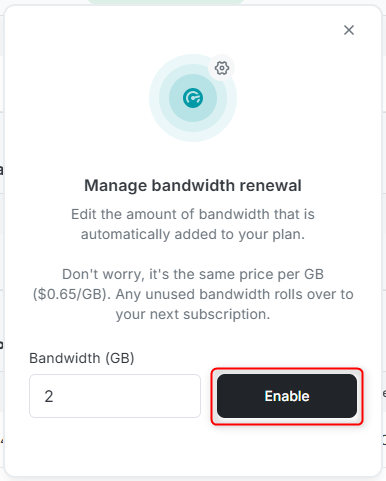
        Choose the amount of bandwidth (GB) to be automatically added, then click **Enable** to confirm.
        <Frame style={{width:"50%", height:"auto"}}>
          <img src="https://mintcdn.com/oculus/B1NT9yKysKU6-W1k/pricing-billing/image/press-enable.png?fit=max&auto=format&n=B1NT9yKysKU6-W1k&q=85&s=b06abe90c45615a5a69a14fdb1b5c515" width="386" height="481" data-path="pricing-billing/image/press-enable.png" />
        </Frame>
      </Step>
    </Steps>
  </Tab>

  <Tab title="Disable Bandwidth Auto-Renewal">
    <Steps>
      <Step title="Go to Subscriptions">
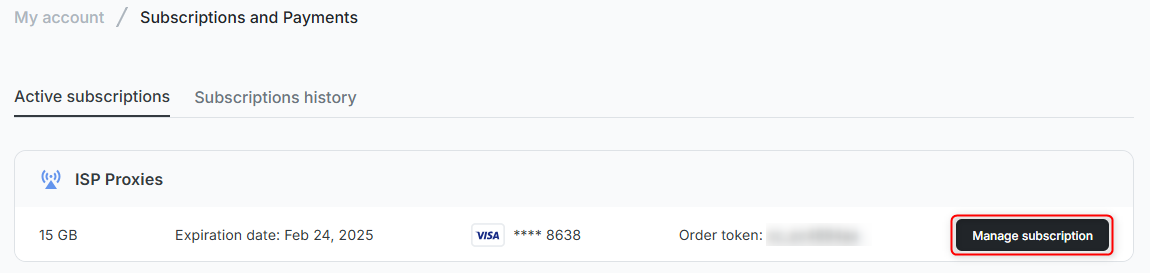
        Navigate to [Subscriptions and Payments](https://oculusproxies.com/dashboard/page/account/section/active), find the proxy, and click **Manage Subscription**.
        <Frame>
          <img src="https://mintcdn.com/oculus/B1NT9yKysKU6-W1k/pricing-billing/image/subs-manage.png?fit=max&auto=format&n=B1NT9yKysKU6-W1k&q=85&s=7ff5f8ff97f9902bcff7a4b5e3f5d361" width="1150" height="273" data-path="pricing-billing/image/subs-manage.png" />
        </Frame>
      </Step>

      <Step title="Cancel Auto-Renewal">
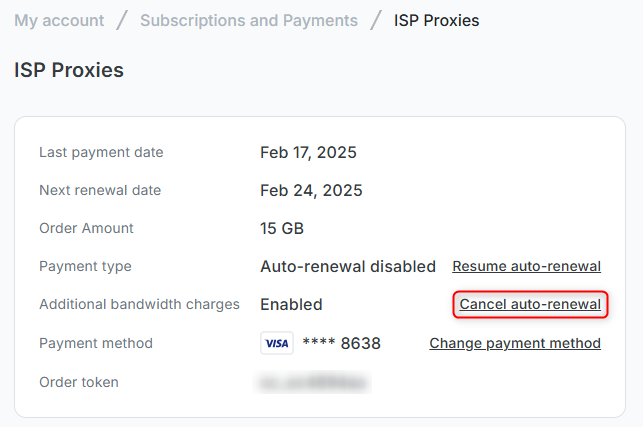
        Under **Additional Bandwidth Charges**, click **Cancel Auto-Renewal**.
        <Frame style={{width:"80%", height:"auto"}}>
          <img src="https://mintcdn.com/oculus/B1NT9yKysKU6-W1k/pricing-billing/image/cancel-bandwidth-renewal.png?fit=max&auto=format&n=B1NT9yKysKU6-W1k&q=85&s=b386b1a22d78cfc17798dd048c3972f0" width="643" height="427" data-path="pricing-billing/image/cancel-bandwidth-renewal.png" />
        </Frame>
      </Step>

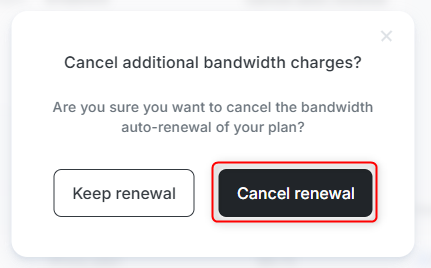
      <Step title="Confirm Cancellation">
        Click **Cancel Renewal** to complete the process.
        <Frame style={{width:"65%", height:"auto"}}>
          <img src="https://mintcdn.com/oculus/B1NT9yKysKU6-W1k/pricing-billing/image/press-cancel-auto-renewal.png?fit=max&auto=format&n=B1NT9yKysKU6-W1k&q=85&s=1905b7b98087d0ed23fa9c59ad892bae" width="431" height="268" data-path="pricing-billing/image/press-cancel-auto-renewal.png" />
        </Frame>
      </Step>
    </Steps>
  </Tab>
</Tabs>

<Tip>
  Need to make changes later? You can adjust or re-enable bandwidth auto-renewal anytime through your [dashboard](https://oculusproxies.com/dashboard).
</Tip>
